AI lip sync matches visible speaking motion to an audio track. To make a talking portrait, first approve an authorized image and a clean voice recording, then use a workflow that supports those inputs. Review the downloaded result at the beginning, middle, and end before trying to repair timing in an editor.
A constant audio offset, gradual timing drift, and incorrect mouth shapes are different problems. Moving an audio track may fix the first, but will not reliably fix the others. This guide uses a short original line to explain that diagnosis without claiming a provider achieved a measured synchronization score.
Choose the right speaking workflow
A talking-portrait tool animates a still face. A video lip-sync tool modifies an existing speaking video to fit another audio track. A translation workflow may additionally translate text and synthesize speech. Native audio-video generation creates picture and sound together. These workflows have different inputs and failure points.
HeyGen's lip-sync page describes a video-and-audio route. Its broader product includes other presenter workflows, but you should confirm the selected mode rather than assume a still portrait can be dropped into every video-sync input.
Decide what you already have. If the voice is approved and the picture is a still, you need a portrait-speaking route. If you have an actual performance with important gestures, an existing-video route may preserve more of that performance. If the spoken words are flexible and the scene is fictional, a native audio-video route is another candidate to evaluate.
Use your own likeness and voice, a properly authorized contributor, or an appropriately licensed presenter. Record which permissions cover the planned use. Do not use someone else's recognizable image or recording just because a tool accepts the file. For a broader scene with speaking characters, plan the roles using the AI comic drama workflow.
Approve the words and voice before animating
Our teaching line is:
“Pack the blue box tonight. Bring it tomorrow.”
It contains two short phrases and a natural pause. The wording gives you several places to inspect lip closure and reopening without demanding a long performance. This is a diagnostic exercise, not a universal phonetic test for every language or accent.
Record a clean version at a comfortable pace. Listen for clipping, background speech, abrupt edits, and an unnatural pause. Keep the original audio file and the approved revision. If you use synthesized speech, review pronunciation and emphasis before spending effort on the face.
Avoid heavy music beneath the diagnostic input. It makes it harder to hear where speech begins and ends. Keep a little natural silence around the utterance if the selected workflow permits it, but do not assume every tool handles silence identically. Confirm supported formats and duration in the current interface.
Read the line in the actual target language. A translated script may have different length and rhythm, so the original video's timing is not automatically appropriate. If meaning and delivery are not approved, synchronization review is premature. Use a video script to keep the exact words tied to the intended shot.
Prepare a portrait or source video that is easy to inspect
For a first portrait test, choose a clear, mostly frontal face with the mouth unobstructed. Avoid a hand, microphone, scarf, or extreme shadow covering the lips. Keep enough of the head and shoulders in frame that small changes in posture are visible.
Use an image that already looks coherent at full size. A malformed mouth or blurred face is not a neutral input. An animation workflow may amplify those defects. Do not aggressively sharpen an image until it creates artificial edges around the lips; start with a suitable source where possible.
For an existing video, inspect the original motion. Large head turns, occlusion, cuts, or several faces can complicate the task. Test a short, continuous interval first. If a sequence includes a cut, process the intended shots separately when the workflow requires it rather than pretending the cut is part of one smooth face motion.
Keep the diagnostic background simple. You want to distinguish mouth problems from a distracting scene. Later you can evaluate more difficult angles and gestures using the same approved voice. The character consistency checklist helps track facial identity and clothing independently of synchronization.
Run one small test and preserve the original result
Select the actual speaking mode, assign the image or video and audio, and confirm that the intended files appear in the input positions. A file uploaded to a library may not yet be selected for the current job. Check any cropping preview before submitting.
Record the provider, model or mode name, date, aspect ratio, source file names, and relevant settings. Do not invent a model version if the interface does not expose one; write “version not displayed.” Keep the generation estimate and actual allowance change if you are evaluating cost.
After processing, download the file. Watch it in an ordinary player or editing timeline before making corrections. If the browser preview seems late but the file is aligned, investigate the playback path rather than modifying a correct asset. A preview and a local file can behave differently.
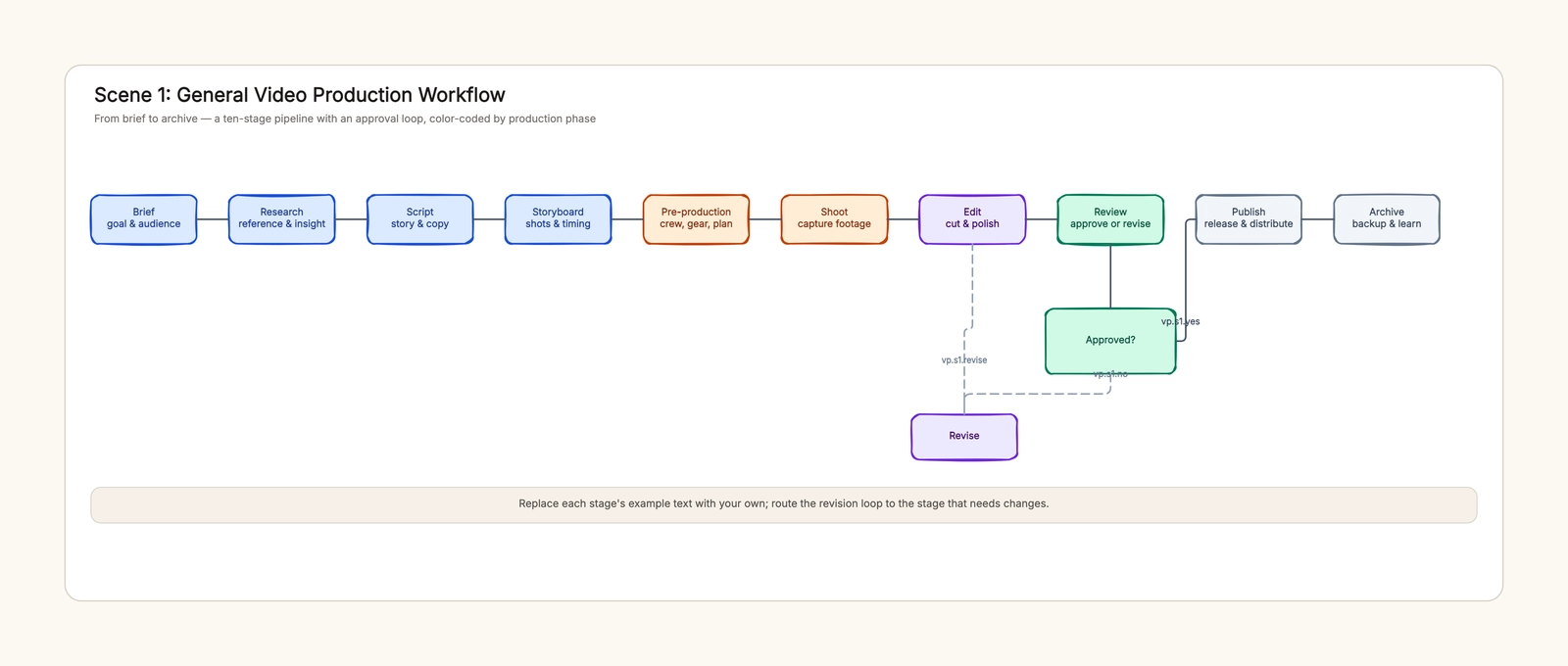
Save an untouched copy of the output. Make timing changes on a duplicate or an editable timeline. Otherwise it becomes difficult to determine whether a later error came from the generation or your attempted repair. The production workflow template can give each revision a clear review stage.
Diagnose offset, drift, and mouth errors
| Symptom | What to inspect | Likely next step |
|---|---|---|
| Voice consistently precedes or follows visible motion | Several clear speech points across the file | Check for a constant track offset |
| Start seems aligned but the end is increasingly wrong | Timing at beginning, middle, and end | Inspect duration, speed, and export handling |
| Timing feels close but lip closures are missing | Local mouth motion around selected sounds | Regenerate or simplify the speaking input |
| Mouth changes when the head turns | Angle, occlusion, and face geometry | Use a clearer source or a separate shot |
| Face changes identity or jaw shape | Compare with the approved source | Reject or revise; an audio shift will not fix it |
These are diagnostic categories, not a guarantee of cause. For example, a constant-looking delay in one player may disappear in another. Reproduce the symptom in the downloaded file and inspect more than one moment before applying a correction.
For the teaching line, examine the beginning of “Pack,” the transition around “blue box,” the pause, and the second phrase. Compare natural audiovisual speech at normal speed first. Slow playback can reveal a defect, but can also make ordinary articulation look strange. Use it to inspect, not as the only acceptance view.
A mouth shape is not a simple one-frame label for a written letter. Pronunciation, surrounding sounds, speaking speed, and individual articulation all matter. The practical question is whether the output supports intelligible, believable delivery for the intended audience, not whether every spelling character has a unique visible pose.
Repair the right layer
If several points show the same offset in the actual file, move the audio relative to picture by the observed amount in an editor, then recheck all those points. Treat the amount as a measured project observation, not a universal correction to apply to every AI lip-sync video.
If the mismatch increases over time, check whether audio or video was stretched, whether the source and output durations differ, and whether an export introduced speed changes. Do not fix the end by repeatedly cutting and sliding tiny audio fragments until the sentence becomes unnatural. Find the underlying mismatch or regenerate an appropriate segment.
If mouth closures are locally wrong while timing is otherwise close, changing the track position usually trades one error for another. Try a clearer source, a simpler angle, a shorter phrase, or the workflow's appropriate regeneration controls. Exact words should remain stable while you test those changes.
If one short section cannot be repaired economically, use an editorial cutaway while keeping the approved speech continuous. A relevant B-roll insert can work, provided it serves the message and does not disguise a misleading claim. For a character scene, a reaction shot may be more natural than a repeated close-up.
Check a second sentence before scaling
A successful short line does not establish that a workflow handles an entire lecture or all languages equally well. Add one new challenge at a time: a longer sentence, a different pace, a mild head turn, or a second camera angle. Keep the voice and identity approved.
Use a small review sheet with the exact sentence, selected intervals, observed issue, accepted revision, and remaining limitations. If more than one reviewer is involved, define what counts as a rejection: changed identity, missing words, distracting mouth deformation, or unusable timing in the final file.
Review the export at the actual display size and with captions if they are part of delivery. Captions should match the approved spoken words, not an earlier draft. Confirm the final crop does not cut away the mouth during an important phrase.
For cost planning, count accepted speaking intervals and revision time. A long generated video with several rejected phrases is not equivalent to the same length of usable speech. The free-plan comparison separates trial allowances from production capacity.
Deliver the speaking asset with its context
Keep the approved image or source performance, authorized audio, exact transcript, original generated file, edited file, and timing notes together. State whether the output is a synthetic portrait, a modified existing video, or another speaking workflow. That information matters to whoever edits or publishes it later.
For the lunch-box line, acceptance means the words are correct, the face remains consistent, timing is comfortable in the downloaded file, and the final crop and sound work in the intended sequence. It does not imply measured performance for every subject or a general ranking of tools.
AI lip sync works best as one reviewed stage in production. Approve the words, choose a suitable visual input, diagnose the actual mismatch, and repair the layer responsible for it. If the task requires a broader model choice, the Kling vs Veo comparison explains why dialogue capabilities and platform availability need to be evaluated separately.