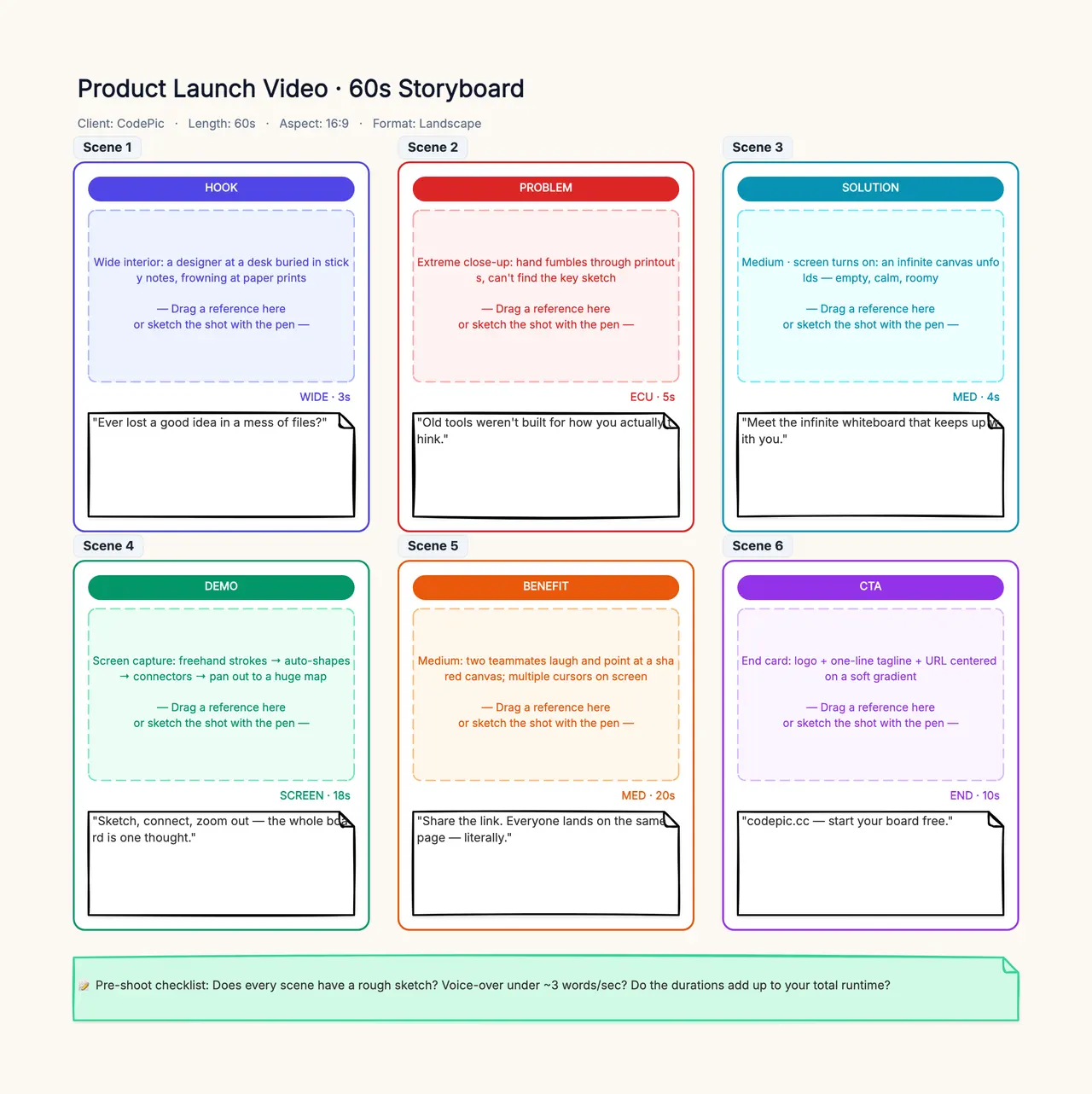
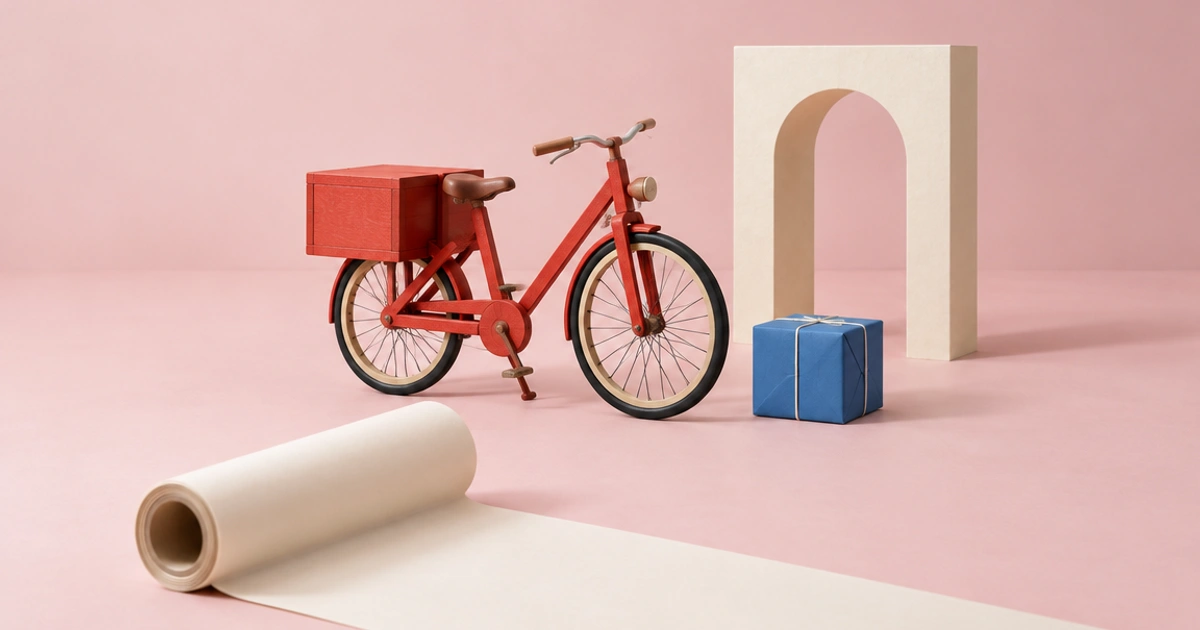
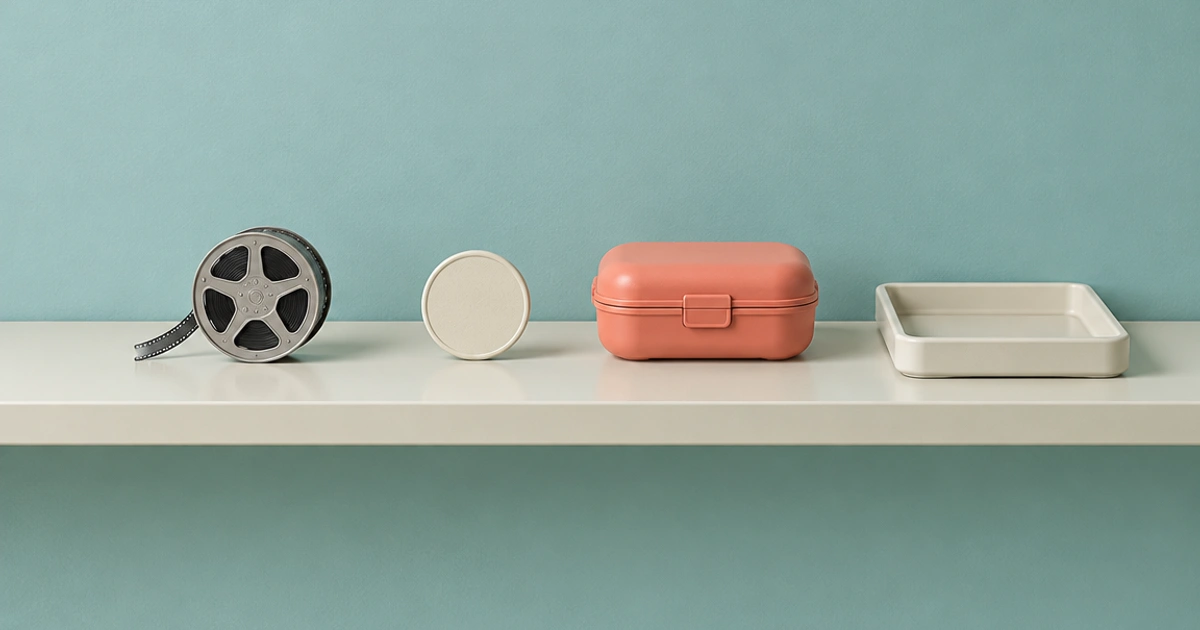
An AI B-roll generator should supply a useful cutaway for your existing story, not a stream of loosely related pictures. Start with the voiceover, mark where a visual adds information or covers an edit, and decide whether each insert should come from stock, a real recording, or newly generated footage.
Below is an original planning exercise for a short voiceover about packing tomorrow's lunch. It maps six possible inserts to specific lines and explains how to prepare, prompt, and review them. These are production plans rather than footage-generation results; the example does not claim that any provider completed the shots.
Separate generated B-roll from automatically selected stock
AI-selected B-roll usually means software matches part of a transcript to an existing library clip. AI-generated B-roll means a model creates a new clip from instructions or reference material. The first route depends on what the library contains; the second depends on the model's ability to preserve the intended scene.
Runway's B-roll resource distinguishes these workflows, and Descript's custom B-roll tutorial describes adding generated media to an edit. Neither source establishes that your particular account, model, or project will produce an acceptable result without review.
Use stock for an ordinary concept when a suitable licensed clip already exists. Generate when a fictional or illustrative scene needs a particular arrangement that does not need to prove a real event. Record the actual screen, product, place, or process when the viewer needs factual evidence about it.
A talking-head edit may use all three routes. There is no requirement that every cutaway be generated just because an AI B-roll generator is available. The video production workflow can assign each missing shot to the appropriate source before editing starts.
Begin with the actual voiceover
Our teaching script reads:
“Before the morning rush, choose what tomorrow's lunch needs. Put the container where you will see it. Separate the parts you want to keep apart. Leave a note for anything that belongs in the fridge. Close the box when it is ready. In the morning, check the note before you leave.”
Record or read it at a natural pace. The timing depends on the speaker, pauses, and demonstration. Do not infer exact duration from word count. Keep the sound edit stable before spending time matching six visuals to a narration that will later be rewritten completely.
Now identify the information each phrase needs. “Separate the parts” benefits from seeing the actual compartments. “Morning rush” can be a general atmosphere if it is not making a claim about a particular person or place. The final reminder may be best shown with a real note added as a graphic in editing.
Do not cover the entire face by default. Returning to the speaker can provide emphasis and continuity. Six possible inserts are an asset plan, not an instruction to cut away at every sentence. The video-script template helps align spoken information, picture, timing, and source.
Map six inserts to six distinct jobs
| Voiceover cue | Proposed insert | Source decision | What it must communicate |
|---|---|---|---|
| “Before the morning rush” | Quiet evening kitchen counter | Stock or illustrative generation | Preparation happens ahead of time |
| “Put the container…” | Container placed in a visible spot | Real product recording | Location and actual item |
| “Separate the parts…” | Overhead view of compartments | Real recording | Accurate organization |
| “Leave a note…” | Blank note area with text added later | Recorded background plus graphic | A readable reminder |
| “Close the box…” | Actual lid closes correctly | Real recording | True physical interaction |
| “Check the note…” | Return to speaker or reminder detail | Existing A-roll or recorded insert | One clear final action |
Only the first row is an obvious candidate for unconstrained generated atmosphere. That is a useful finding: a good plan can reduce the need to generate. A generator is not the right tool for proving the actual hinge or compartment layout of a lunch box.
For a fictional story, the balance can differ. You might generate a quiet counter, a parcel insert, and a door reveal because no real product is being represented. Use the three-shot text-to-video exercise when inventing the scene is part of the assignment.
Prompt the insert, not the whole narration
For the evening atmosphere shot, write:
A quiet kitchen counter prepared for the next morning. A folded oatmeal cloth and a plain reusable bag sit apart on a pale work surface. Stable medium-wide camera, soft warm indoor light, subtle natural shadow movement, calm continuous shot with open space at the center.
This creates one visual situation. It does not ask the model to interpret the entire speech, invent a person packing food, generate a readable note, and close the product correctly. Those are different tasks with different evidence requirements.
If you use a reference image, make the prompt about its intended movement. A slight light change may be enough for an atmospheric insert. If a particular real object must remain accurate, first apply the image-to-video checks, and be ready to use a conventional still treatment if generated movement distorts it.
For a metaphorical explanation, make the metaphor visible and limited. A few objects arranging into groups can illustrate organization, but should not be presented as the actual contents or capability of a real product. Keep explanatory footage distinguishable from evidence through context and, where appropriate, clear labeling in the edit.
Match the cutaway to the main footage
Look at the A-roll before choosing a style. Note the dominant light direction, color temperature, camera height, contrast, and energy. A calm seated presenter can feel disconnected from a fast orbit through a glossy fictional kitchen.
Write a short continuity note: “Warm, ordinary kitchen; stable camera; close human scale; no dramatic movement.” Use it to select stock and generate footage. You do not need identical backgrounds, but the cuts should belong to the same editorial mood unless a deliberate contrast serves the message.
Check action direction. If a hand moves left to right in one insert, a sudden reversal in the next may feel like the process runs backward. Check scale as well: a close-up of an enormous-looking box can confuse the dimensions established elsewhere.
Sound continuity matters even when B-roll is silent. Mute irrelevant generated tracks and keep the approved voiceover clean. Add deliberate room tone or Foley when it supports the scene. A random musical swell or extra voice can distract from the words. See the video prompt examples for separating picture and sound instructions.
Place the cut for meaning and breathing room
Start the insert near the phrase it clarifies, but do not require every cut to land on the first syllable of a noun. A small anticipation can help viewers orient before an important phrase. Let a useful action finish before returning to the speaker.
Use cutaways to cover a voice edit only when the picture also makes sense. A clip chosen solely to hide a jump can introduce a new factual error or an unrelated visual idea. If no insert adds value, a straightforward jump cut may be clearer.
Leave handles around the selected interval. An editor may need a little more time before the lid closes or after the reminder appears. Download and preserve the original candidate rather than saving only a tightly trimmed export.
Watch the sequence without sound. Can you infer the process? Then listen without pictures. Does the narration remain understandable? Finally combine them. If both tracks compete to communicate unrelated information, simplify the visual or rewrite the line. For persuasive short-form work, the 15-second ad example shows a tighter picture-and-copy alignment.
Audit factual accuracy and rights
A B-roll clip can make a claim without a caption. A generated factory shown over “we make our products here” implies that the factory is real. An invented customer reaction over a testimonial can imply an experience that never happened. Use verified material when the narration points to a real identity, place, process, or result.
Check product clips against the actual item, including the moments between attractive frames. A lid that changes hinges halfway through is still wrong. Generated text should not carry essential reminders or specifications; add exact words in editing and proofread them.
Keep the source and usage information for stock, music, voices, and reference images. “AI-selected” does not mean the licensing question disappeared. “Generated” does not automatically establish the rights to an uploaded face, logo, or recording. The project record should show which inputs were authorized and which terms apply to the intended use.
For this lunch example, the compartment and closing shots belong in the product accuracy workflow. The atmosphere insert can remain illustrative, provided the edit does not suggest it documents a particular person's kitchen.
Keep a small, useful B-roll library
Store each accepted insert with its role, source, prompt where relevant, model or library identifier, and usable interval. Tag the scene descriptively: “warm kitchen, static, empty center” is more useful than “great clip.” Include any restriction such as “not an actual product demonstration.”
Keep rejected clips only as long as they help diagnosis or revision history. Separate candidates from approved assets so a teammate does not accidentally use a visually appealing failure. The approved folder should contain files that survive factual, visual, and export checks.
Measure the workflow by accepted inserts and editing time, not by how many clips an automated tool places on the timeline. An irrelevant insert still needs to be removed. A short recorded shot that immediately fits may be more efficient than several generated attempts.
Before exporting, review all six planned jobs again. Some may now be served by the same accurate clip; another may need a return to the speaker. An AI B-roll generator is useful when it fills a real gap in that plan. The story, evidence, and final edit remain the basis for deciding what belongs on screen.