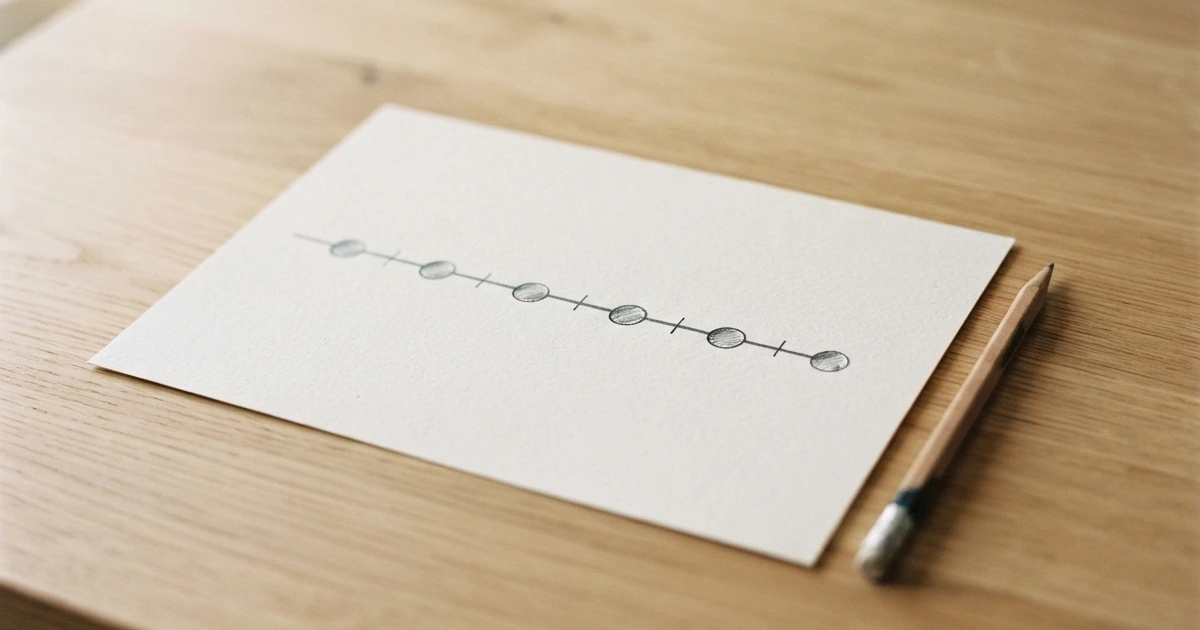
Use a simple project timeline template when the audience needs key outcomes and dates, rather than every task and dependency. This guide gives a ten-milestone example and shows how to revise it when a review slips. Use fewer milestones if those are all the decisions the audience needs.
Keep an owner and a completion check beside each milestone. The line explains sequence; a separate task schedule is needed when automatic dependencies or resource planning drive the work.
Fastest Option: Open the Editable Timeline Template
If you just need the timeline finished, start with the CodePic project timeline template. Replace the sample milestones, keep the hand-drawn visual style, and export the result as PNG. No chart setup, no spreadsheet formulas, no SmartArt cleanup.
Use the other methods below when your workflow already depends on a specific tool. Use CodePic when the goal is a clean timeline you can finish and share quickly.
When Simple Is Better
Not every project timeline needs to be a Gantt chart. Simple timelines win in three situations:
Status updates. Your weekly email or Slack update doesn't need a detailed project plan. It needs a visual that says "here's where we are and what's next" in under 5 seconds. A simple timeline does that. A Gantt chart makes people squint.
Early-stage planning. Before you know task dependencies, resource allocations, or even the exact scope, you know the big milestones. A simple timeline captures what you know now without pretending you know the rest. As the plan firms up, graduate to a more detailed format.
Audiences that don't need detail. Executives, clients, and cross-functional partners usually need to know the sequence and rough timing of milestones — not which task depends on which. A simple timeline respects their time.
If you find yourself thinking "I should probably add dependencies and durations to this," that's when to switch from a simple timeline to a more structured format like a Gantt chart or a multi-track timeline.
The Simple Timeline Format
Before picking a tool, understand the format. A simple timeline has three layers:
The line. A horizontal line across the page or slide. This is the time axis. It doesn't need a scale — just left (earlier) to right (later).
The milestones. Points along the line. Usually represented as circles, diamonds, or small flags. 8-12 of them, evenly or proportionally spaced depending on whether you care about relative timing.
The labels. Each milestone gets a short name above or below its point, and optionally a date. Keep names under 6 words. "Q3 Launch" is a good label. "Q3 product launch across all EMEA markets with localized pricing" is a sentence, not a label.
That's it. Three layers. No task bars, no dependency lines, no resource rows. The simplicity is the point — a timeline you can read in 3 seconds flat.
Building a Simple Timeline in 4 Tools
Option 1: CodePic (Fastest — No Signup, No Setup)
Open the timeline template in your browser. Replace the placeholder text with your milestones and dates. The hand-drawn style naturally communicates "this is a draft / overview" — exactly the tone you want for a simple timeline in a status update or early-stage plan. Export to PNG when done. Total time: 5-10 minutes for 10 milestones.
This is the fastest option when you're starting from zero and want a visual that looks intentional without looking overproduced.
Option 2: PowerPoint / Google Slides (Best for In-Deck Timelines)
Draw a horizontal line across the slide. Place small circles at milestone positions along the line. Add text boxes with milestone names and dates. If you're presenting this slide, alternate milestone labels above and below the line for visual rhythm — it keeps text from bunching up. Total time: 10-15 minutes.
PowerPoint's Basic Timeline SmartArt is a useful starting point. Use custom shapes when the built-in arrangement does not fit your labels or sequence; native slide objects keep the deck editable by its recipient.
Option 3: Miro (Best for Collaborative Brainstorming)
Open a Miro board. Draw a horizontal line (or use a connector with no arrows). Use the sticky note tool to place milestones along the line — sticky notes are great here because you can move them around as the group debates the sequence. Add dates below each sticky note. Total time: 10 minutes, plus however long the team discussion takes.
Miro's strength here is that building the timeline is the meeting. Everyone participates in placing and sequencing milestones, which surfaces disagreements about timing and priority in real time.
Option 4: Mermaid (Best for Text-First, Developer Workflows)
Write a simple Mermaid timeline block in any Markdown editor or Mermaid live editor:
timeline
    title Project Timeline
    Jan 2026 : Kickoff
    Feb 2026 : Design Review
    Mar 2026 : Dev Start
    May 2026 : Beta
    Jun 2026 : Launch
This produces a clean, readable timeline with zero manual positioning. Paste it into GitHub, Notion (with Mermaid support), or any Mermaid-compatible renderer. Total time: 3 minutes. Best for developers and anyone comfortable with text-based diagramming.
Simple Timeline Dos and Don'ts
Do keep labels short. If a milestone name wraps to a second line, it's too long. Edit for brevity.
Do use one accent colour. Colour every milestone circle the same neutral tone. Make one — "Today," "Launch," or the key decision point — a contrasting colour. One accent draws the eye; multiple accents dilute.
Don't add decorative elements. No clip art, no 3D effects, no gradient fills on milestone circles. Every visual element that isn't communicating information is diluting the information that matters.
Don't fake precision. If your dates are rough estimates, label them as such — "Q2 2026" rather than "April 15, 2026." A simple timeline with honest date ranges builds more trust than a precise-looking timeline built on guesses.
Do add a "Today" marker if relevant. A thin vertical line showing the current date grounds the timeline. The reader immediately sees what's done and what's ahead.
A Complete 10-Milestone Example
Suppose a small team is launching a customer portal in six months. A useful simple project timeline could contain these milestones:
| Date | Milestone | What the label communicates |
|---|---|---|
| Jan 12 | Kickoff | Scope and owners agreed |
| Jan 26 | Research complete | Customer interviews synthesized |
| Feb 9 | Requirements locked | Version-one boundaries approved |
| Feb 23 | Design review | Main flows ready for feedback |
| Mar 9 | Build starts | Engineering moves into delivery |
| Apr 6 | Internal demo | End-to-end path works |
| Apr 20 | Beta opens | Selected customers get access |
| May 4 | Feedback review | Launch blockers are prioritized |
| May 18 | Release candidate | Final checks begin |
| Jun 1 | Public launch | Product is available to everyone |
Notice what is missing: no task-level checklist, no owner column, and no dependency web. Those belong in the working project plan. The timeline only carries the ten moments a stakeholder needs to understand the sequence.
Before sharing, run a quick test. Can a reader identify the start, current point, next milestone, and finish within five seconds? Are dates written at the same level of precision? Does each label describe an outcome rather than an activity? If not, edit the milestones before adding more design.
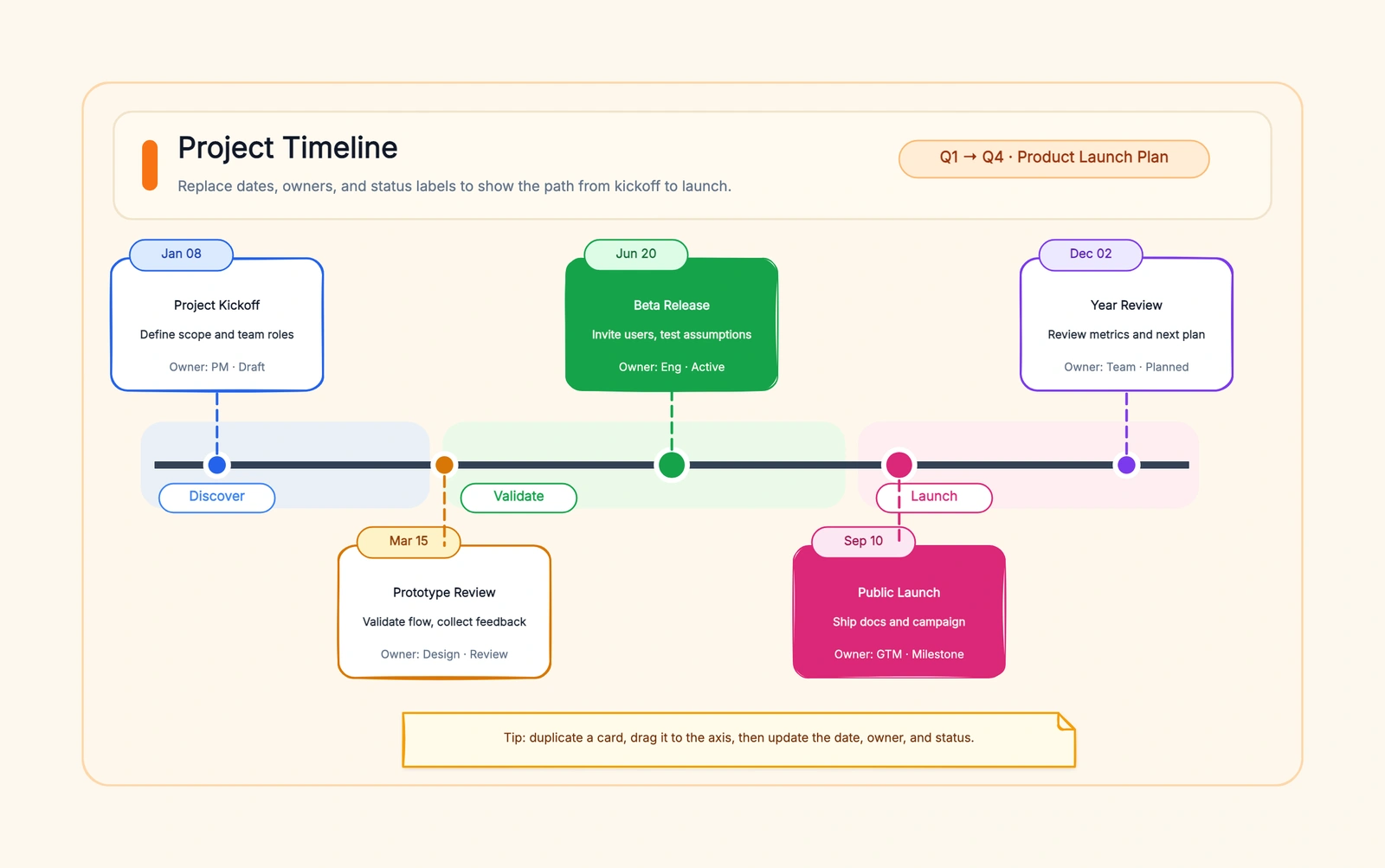
Use the project scene in the template below to draw your own overview. Start by replacing the kickoff date and milestone title, then duplicate or remove cards to match your plan. The starter has five project milestones, not the ten from this example; add the extra cards yourself and update positions and dates manually.
If the project later needs durations and dependencies, compare the best free Gantt chart makers before forcing more detail onto the same line.
From Simple to Structured
A simple timeline is often the first draft of something more detailed. The progression usually goes:
- Simple timeline (this guide) — milestones only, for early-stage alignment
- Multi-track timeline — add parallel tracks for different workstreams when the project has concurrent threads
- Gantt chart — add task durations and dependencies when execution planning begins
Don't jump to step 3 before step 1 has served its purpose. The simple timeline's job is alignment — getting everyone to agree on what happens when. Once that's solid, adding detail is productive. Adding detail before alignment is just making busy-looking charts that nobody agrees on.
Open the CodePic timeline template for a manually editable visual starting point. Replace the sample milestones, check labels at the intended size and export PNG for readers or JSON for another edit. No completion-time benchmark is claimed.
Related Reading
- Free Project Timeline Maker: 7 Tools + Templates Compared — The main timeline pillar with full tool comparisons
- Project Timeline Template Excel: Free Download + Step-by-Step — When you need auto-updating dates from a spreadsheet
- Project Timeline Template PowerPoint: Beyond SmartArt — When the simple timeline needs to look designed for a presentation
- Project Timeline Template Google Sheets: Collaborative + Free — When the simple timeline needs real-time collaboration
Revise the plan without erasing the baseline
Imagine the ten-milestone example is a small website launch. The design review was planned for November 12, but a reviewer is unavailable until November 16. Keep the original date in the supporting list and show the latest forecast on the presentation timeline; otherwise the team loses the reason the launch moved.
| Milestone | Baseline | Latest forecast | Owner and completion check |
|---|---|---|---|
| Design accepted | Nov 12 | Nov 16 | Design lead; agreed screens approved |
| Content ready | Nov 17 | Nov 17 | Editor; required pages reviewed |
| Build accepted | Nov 20 | Nov 24 | Engineer; agreed acceptance checks pass |
| Launch decision | Nov 23 | Nov 25 | Project owner; launch criteria reviewed |
These are illustrative dates, not a calculated dependency model. Ask the owners whether content can continue during the review delay and whether build work really must wait. Do not move every later milestone by four days simply because one moved by four days.
On the canvas, label the revision date, mark uncertain forecasts and keep a small change note: “Review moved; content remains parallel; launch decision updated.” Then have someone unfamiliar with the project identify the next decision and its owner. If they need every small task to understand the picture, the milestone labels are probably too vague.
A PNG is the sharing snapshot. Keep editable JSON or the native source for the next update. For actual date arithmetic rather than milestone communication, use the Excel timeline walkthrough or a scheduler.