A NotebookLM infographic turns source material into a single visual summary. To make it useful, decide what the reader should understand, verify the claims and relationships, and inspect the downloaded image before sharing it. A visually persuasive summary can still omit the condition that changes its meaning.
This walkthrough creates an original information plan for a fictional neighborhood tool library. It provides a fact sheet, a relationship audit and a layout brief. Those are authored planning artifacts, not an infographic generated in a Google account, and no automatic conversion into editable whiteboard nodes is claimed.
Understand the current infographic workflow
Google's current infographic help uses the Gemini Notebook name and describes customization and PNG download. Check the supported account, device and current controls before following a tutorial. The purpose here is the review process around a visual summary, not an assumption that every account has identical options.
A PNG is an image deliverable. It can be useful for a handout, a reference or a slide, but the image alone does not establish that the text and relationships can be edited as separate objects. Decide whether you need a final illustration or a living structure you will revise.
The mind map guide covers a related task: exploring topics through branches. An infographic usually needs a more deliberate reading sequence because the reader sees a composed summary rather than a navigable source outline.
Choose one message before writing a prompt
Our fictional tool library wants to explain how a member borrows and returns a small hand tool. The reader should understand the sequence and notice where condition checks occur. The goal is not to advertise membership growth or claim that borrowing reduces costs by a measured amount.
Use one sentence as the visual brief: “Show a member the borrowing loop, including availability, checkout, return inspection and the next possible loan.” That sentence helps you reject attractive but irrelevant sections such as a decorative history of tools.
Download the original fact sheet and infographic brief. The fictional statements are numbered so each visual element can be checked. Replace the facts with approved material before using the plan for a real organization.
A useful audience constraint is “first-time member reading a small handout.” That affects text length, reading order and emphasis. A poster across a room, a mobile image and a detailed staff procedure would need different layouts even if they used the same facts.
Build the factual spine
The exercise fact sheet contains five statements. T1 says members check availability before requesting an item. T2 says checkout includes a condition record. T3 says the item returns by the agreed date. T4 says staff inspect it before making it available again. T5 says damaged items go to a review queue rather than immediately returning to circulation.
| Visual element | Supporting fact | Meaning that must survive |
|---|---|---|
| Availability step | T1 | A request is not a confirmed reservation |
| Checkout step | T2 | Condition is recorded at handoff |
| Return step | T3 | The due date is agreed, not a universal number |
| Inspection step | T4 | Availability follows inspection |
| Exception branch | T5 | Damage requires review before another loan |
Do not invent a “seven-day loan” to fit a badge unless the real policy supplies that duration. The exercise deliberately avoids a fixed number. A concise label can say “agreed return date” without creating a policy the organization never adopted.
Check the relationship as well as the words. If the arrow goes from return directly to available, the image can contradict T4 even while an inspection icon appears elsewhere. Visual sequence carries a claim.
Write a constrained generation brief
An original prompt for your own supported session could ask for a five-stage borrowing loop, a clearly separated damaged-item branch, short labels and source-grounded wording. Specify that no membership statistics, prices or environmental savings should be invented. Ask for a draft that can be reviewed before publication.
Style words are secondary. “Minimal,” “playful” and “professional” do not tell a generator whether inspection comes before availability. Approve the semantic sequence first, then decide the visual tone and orientation that fit the audience.
Preserve the source pack and the actual prompt if you generate an image. Save the unedited output separately from any retouched version. That record allows a reviewer to distinguish a generation mistake from a later editing mistake and repeat the task when the policy changes.
This article does not supply a vendor-generated image. The downloadable brief is the actual deliverable. If you later show an image as a product result, retain the real original instead of presenting a manually drawn illustration as that result.
Plan an editable relationship map first
Open the concept map template and create nodes for member, available item, checkout record, returned item, inspection and review queue. Label the relationships with verbs such as requests, records, returns and checks. Keep the exception branch separate from the normal circulation path.
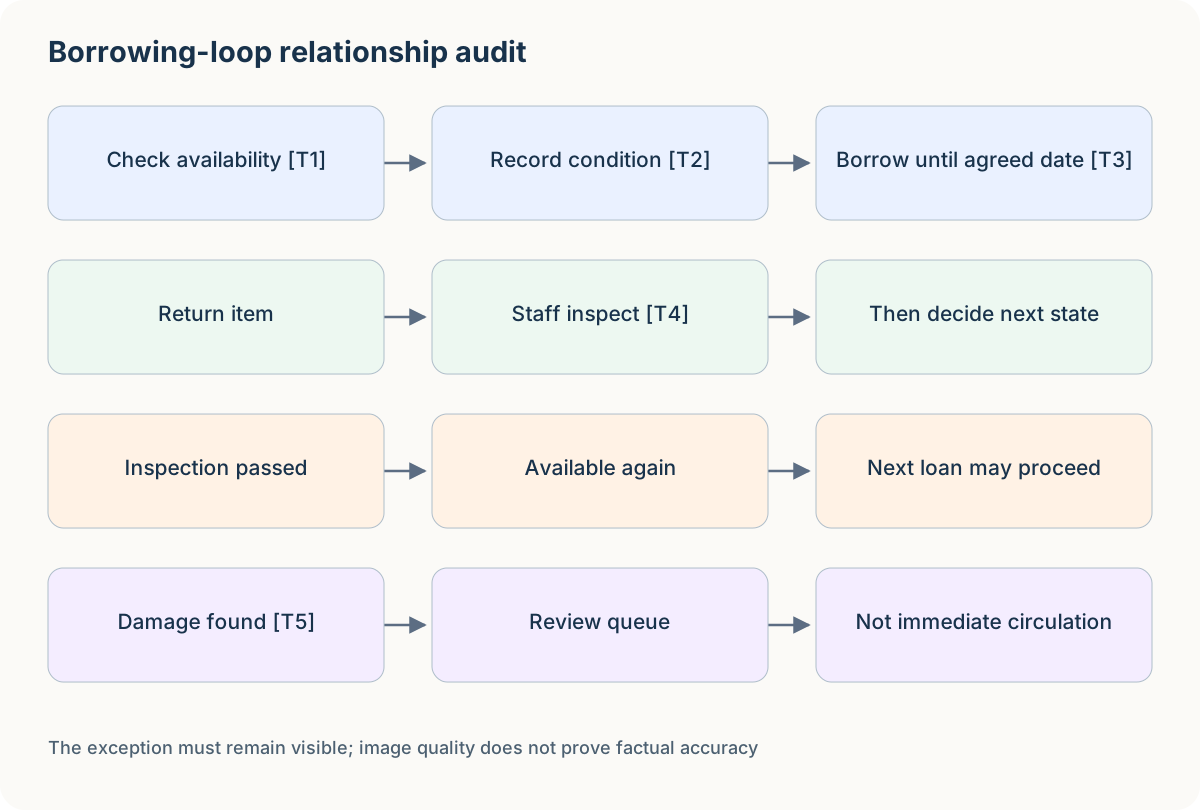
Author-created example: inspect the relationships before adapting the template.
Replace those nodes with your own source facts, add the policy owner beside unresolved points and move any unsupported claim into a review area. The result is an editable planning map. It does not turn an imported PNG into separate editable objects, and CodePic is not being presented as the external infographic generator.
A flowchart template is another option when sequence matters more than conceptual relationships. Use the representation that makes the error easiest to spot, rather than forcing every visual brief into the same diagram type.
Audit the picture in three passes
Start with facts. Read every word and number in the actual image against the source sheet. Check names, dates, units, scope and any small captions. Decorative badges often carry the strongest unsupported claims, such as “instant,” “guaranteed” or an invented percentage.
Next inspect relationships. Follow arrows in order and explain the process aloud. In this exercise, the item cannot become available again before inspection. A damaged return must reach review. If the design creates a shortcut that bypasses either condition, revise the sequence rather than merely changing the colors.
Finally inspect usability. View the image at the size where readers will encounter it. Check whether the main sequence remains readable, whether the exception is visible and whether color is the only way to distinguish states. A beautiful full-screen preview can become unreadable on a phone or a printed half-page.
Use a review sheet with separate columns for factual, structural and visual findings. That prevents a design revision from being marked complete just because it looks cleaner. A corrected arrow and a larger label solve different problems and should be checked separately.
Work through an intentionally flawed version
An authored weak plan reads: choose tool → take tool → return tool → available, with a small note elsewhere saying “staff inspect returns.” It looks concise but suggests that return alone restores availability. It also drops the checkout condition record and the damaged-item route.
The corrected plan is: check availability → record checkout condition → borrow until agreed date → return → inspect → available or review queue. This is a proposed sequence derived from the fictional fact sheet, not a measured operational improvement.
The revision log should name each change: added the condition record from T2, moved availability after inspection from T4, restored the exception branch from T5, and replaced any fixed loan period with T3's agreed date. That log makes the correction auditable even before visual styling.
A reader can now inspect whether the image communicates the policy. They still cannot infer how fast the process is, whether members follow it or whether it reduces damage. Those would require separate evidence and measurement.
Download and hand off with the right expectations
After generating in your own account, download the actual artifact and inspect it outside the preview. Verify its dimensions, legibility and any cropping in the intended destination. Keep the source file and the reviewed version identifiable.
If a teammate needs to change a policy next month, give them the source sheet, the prompt, the review log and the editable planning map. A PNG alone makes it harder to reconstruct which claim came from which source. Do not promise a layered design file unless that file has actually been produced and checked.
For an image inserted into a slide, check how it appears at presentation size. For a handout, test the printed or PDF layout you intend to distribute. This article does not claim to have performed those destination tests for an external generated image.
The Claude Slides planning guide offers a slide-level story worksheet if the infographic will become one part of a presentation. Keep the summary's role clear so it does not try to replace the entire talk.
Common infographic mistakes
Checking labels but not arrows. A diagram's structure can contradict its text. Follow every path, including exceptions, and compare the implied sequence with the source.
Making the unknown look precise. A number-shaped design element tempts authors to fill it. Use the supported wording or mark the question for the policy owner.
Calling a PNG an editable project. An image may be retouched, but that is different from modifying independent text, nodes and relationships. State the actual file and workflow.
Using visual quality as proof. The image can be clear and still contain unsupported claims. Keep factual and visual acceptance separate.
Keep the source behind the summary
Save the fact sheet and review log beside the final image. When the policy changes, update the relationships before redesigning the visual. For a method to choose the right version of a source, see the context engineering example. A useful infographic remains explainable after the first impressive preview.