Claude Slides is useful to investigate when you want to turn a brief into a presentation, but the deck still needs a clear argument and an export review. Start with the audience's decision, build a short sequence of claims, and check the actual file in the application where it will be presented.
This guide develops an original six-slide structure for a fictional community repair workshop. You can download the brief and slide-by-slide worksheet. It is an authored planning example, not a deck generated in a Claude account, and no PPTX file or export benchmark is claimed.
Identify which Claude presentation workflow you mean
The Claude Academy presentation tutorial is the starting point for the native presentation workflow. Claude working inside Google Slides is a separate integration; the Workspace announcement describes that route. A third possibility is asking an assistant to create a presentation file through other document capabilities.
Those routes can have different interfaces and available outputs. Check the current product page and your own account before following exact button instructions or assuming that another person's export option exists in your environment. The six-slide planning method below can be used before any of those routes.
Choose the required handoff format early. If a colleague needs an editable PowerPoint file, a screenshot of a slide is insufficient. If the task is a live browser presentation, check the intended playback environment. A visually convincing preview does not settle the file-delivery requirement.
Write a brief around one decision
The fictional audience is a neighborhood-library coordinator. The decision is whether to approve planning a small repair workshop, subject to a room and staffing check. The talk is a proposal, not a claim that a successful event already happened.
The source facts in our brief are deliberately modest: the workshop will assess small fabric items, the team has not confirmed a date, and capacity and volunteer availability remain unresolved. Do not add attendance numbers, repair-success percentages or partner endorsements just to make the slides look more persuasive.
Download the six-slide brief and review worksheet. Its fields include slide purpose, claim, evidence, visual plan, speaker note and open dependency. Keeping those fields separate helps prevent a decorative chart from being mistaken for evidence.
A useful prompt for a future generation session is: “Draft a six-slide proposal from this brief. Give each slide one audience question, one supported claim and a visual suggestion. Preserve all unresolved dependencies. Do not invent event results or present the proposal as approved.” This is an authored prompt, not a record of a completed product test.
Build six slides that earn their place
Each slide answers a different question. If two adjacent slides answer the same question, combine them or sharpen their roles before working on visual style.
| Slide | Audience question | Proposed content | Evidence or dependency |
|---|---|---|---|
| 1 | What are we deciding? | Plan a small repair workshop | Proposal status explicit |
| 2 | What happens at the event? | Intake, assessment and advice | Scope from the brief |
| 3 | What does a visitor experience? | One item's path through the room | Authored process, not observed data |
| 4 | What resources are needed? | Room, volunteers and materials | Capacity and staffing unconfirmed |
| 5 | What could prevent it? | Missing approvals and fallback choices | Open dependencies |
| 6 | What should the coordinator do next? | Confirm constraints before selecting a date | Specific decision request |
Slide 1 should name the requested decision rather than announce the program as a certainty. Slide 2 explains the activity without promising that every item can be repaired. Slide 3 earns a diagram because it explains a path; the other slides do not all need diagrams.
Slide 4 should not hide unresolved capacity behind a placeholder number. A visible “confirm with room owner” is more useful than a fabricated estimate. Slide 5 provides options such as a smaller session or a different room, while making clear that their feasibility still needs checking.
Turn the outline into a visual planning board
Place six blocks on a blank whiteboard. Write the audience question above each block and the evidence reference below it. Connect the main argument: decision → activity → visitor path → resources → dependencies → next action. If a block cannot support that progression, revise the story before generating artwork.
Open a blank CodePic board and replace the six questions with the decisions in your own presentation. Keep unconfirmed claims in a separate area until you have evidence. The output is an editable story plan, not a slide deck or a PowerPoint export.
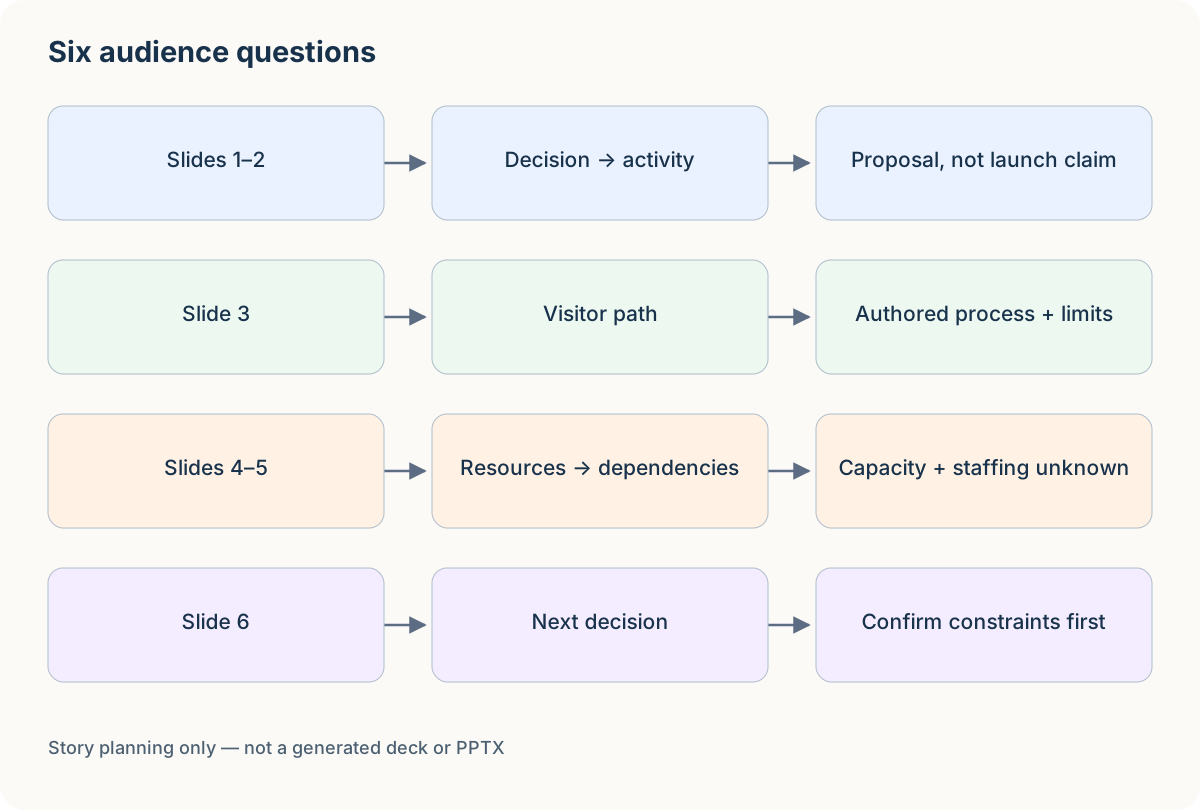
Author-created example: inspect the relationships before adapting the template.
If your presentation includes a process, the flowchart template can help isolate that one slide's structure. For a video rather than a talk, use the video script example, where spoken words and feasible pictures need a different timing contract.
Draft speaker notes before choosing decorative images
For slide 3, the proposed visual is a simple visitor path: arrive, describe the item, receive assessment, then leave with advice or an agreed next step. The speaker note should explain that the workshop does not guarantee repair. The diagram is a proposed service path from the brief, not evidence of an event that already occurred.
A note might read: “We need a clear intake point so visitors understand what can be assessed. If an item is outside the workshop's scope, the volunteer explains that boundary rather than promising a repair.” The note adds meaning that does not belong as a dense paragraph on the slide.
Before generating a deck, read the six notes in order. Check whether someone who cannot see the images would still understand the decision. Then inspect the reverse: can someone who reads only the slide headings follow the argument? Those are different checks, and both can expose gaps.
Give every external fact a source reference. An image that illustrates a repair room is not proof of staffing, capacity or results. Do not let a realistic generated photograph create the impression that the fictional event was documented.
Ask for a draft and inspect the claims
When using the presentation workflow in your own account, provide the approved brief and specify the output you need. Ask for a draft before treating the result as final. Retain the original prompt, source pack and actual output so a reviewer can distinguish generated content from later manual edits.
Review in two passes. In the content pass, check every headline, number, diagram label and speaker note against the brief. In the design pass, check reading order, text size, contrast, alignment and whether the image supports the audience question. A good layout cannot repair an unsupported claim.
For this fictional proposal, search for language implying approval: “will launch,” “confirmed date,” “guaranteed repairs” and “proven demand.” Replace it with the supported status or supply evidence before keeping it. This is not about making the proposal timid; it is about asking for a decision with an accurate picture of what is known.
The context engineering exercise shows how to select a current source version. That becomes useful when several planning documents disagree about the event's constraints.
Review the export as a separate deliverable
Check the exported file in the intended destination application. Inspect each page or slide, verify that text remains readable, and test whether the content that needs editing is actually editable. Do not infer editability from the file extension alone; a deck can contain a full-slide bitmap.
Use a review sheet with separate fields for layout, content, editability, notes and media. A slide can pass visual review and fail the handoff requirement because its text cannot be changed. It can also remain editable while its fonts, line breaks or aspect ratio make it unsuitable for the intended screen.
If animations, audio, links or embedded media matter, test those in the real playback path. A browser preview and an exported file can behave differently. Save the reviewed version with a clear status so the presenter does not accidentally use an earlier draft.
This article supplies a Markdown planning worksheet only. It does not imply that CodePic exports PPTX or that an external presentation export has been tested. If you need a real deck, make that file and its destination-app review part of the work order.
Common Claude Slides mistakes
Asking for a polished deck before deciding the story. You may spend time adjusting attractive slides that answer the wrong question. Approve the six audience questions first.
Using a chart because the slide feels empty. A chart needs actual data and an appropriate comparison. For this proposal, a process or a resource checklist is often more honest than invented growth figures.
Mixing native Slides with the Google Slides integration. Identify the product route and check its current documentation. Similar names do not establish identical controls or exports.
Treating a download as a completed handoff. The file must open in the intended application and meet the agreed editing and presentation requirements. Record what you actually checked.
Rehearse the decision, not just the slide sequence
Ask a colleague to explain the requested decision after seeing only the first and last slides. If they think the workshop has already been approved, the opening language needs revision. If they cannot name the next responsible person, the closing request is still too vague.
Then use the six-slide worksheet to find evidence gaps. Every unresolved dependency should either have an owner or be explicitly left as an open question. Do not hide all uncertainty in speaker notes that the audience may never see. Put the condition on the slide when it changes the decision being requested.
A rehearsal can also reveal unnecessary content. Remove a slide that repeats a claim without adding evidence, explanation or a necessary transition. The six-page limit is an exercise structure, not a reason to preserve a page that no longer earns its place.
Make the last slide actionable
End with the specific decision the audience can make now. In this example, confirm room and staffing constraints before selecting a date. Replace that request with your own next decision, keep its dependencies visible, and carry the same evidence references into the actual deck. For a report instead of a presentation, see the Cowork handoff guide.