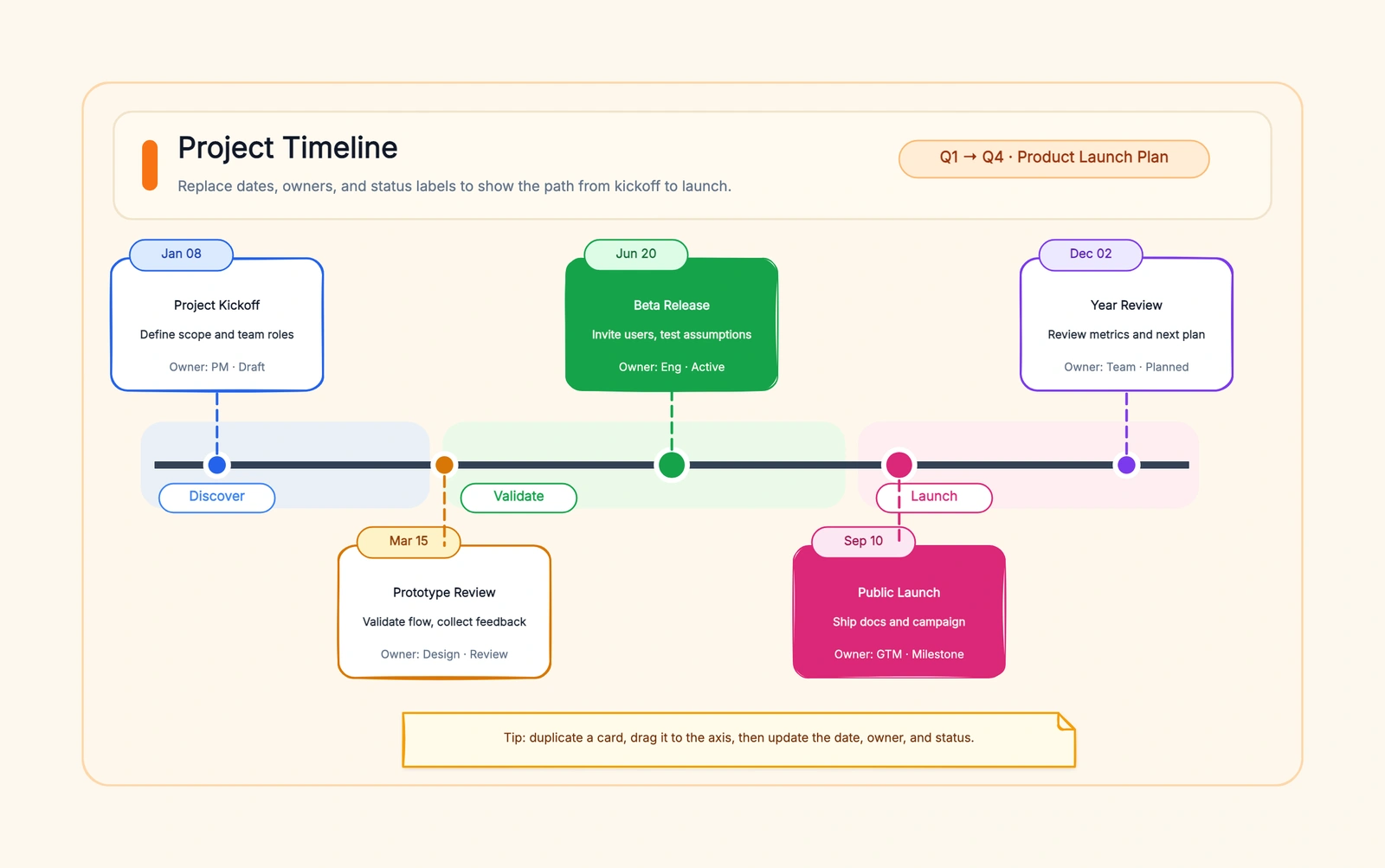
Mermaid timeline syntax starts with the timeline keyword, followed by optional title and section lines, then one entry per period in the form Period : Event. That small grammar is enough for release histories, project milestones, research phases, and incident chronologies inside Markdown.
The difficult part is not the first three lines. It is knowing how to represent multiple events, group phases, control direction, wrap long labels, and recognize when the timeline diagram is the wrong format. The eight examples below move from the smallest valid timeline to a complete release plan you can adapt.
Mermaid currently describes Timeline as an experimental diagram. Its core syntax is stable, while newer capabilities can depend on the Mermaid version used by your renderer. Test advanced examples in the environment where the document will actually be published.
Mermaid Timeline Syntax at a Glance
The basic pattern is:
timeline
    title Optional title
    Period : Event
    Period : Event : Another event
Three details matter:
timelinedeclares the diagram type and must come before the timeline content.- The text before the first colon is the period. It can be a year, date, quarter, sprint name, or descriptive phase.
- Everything after the colon is an event. A period can contain more than one event.
Mermaid places periods in source order. It does not parse 2025, 2026 Q1, or Week 4 into a proportional date scale. If you write 2020, 2025, and 2026, the visual order will be correct, but the five-year gap will not automatically appear five times wider than the one-year gap.
That makes Timeline good for communicating sequence. If task duration and dependency math matter, jump to the Timeline vs. Gantt section before building a large diagram.
Example 1: The Smallest Working Mermaid Timeline
Start with three periods and one event per period:
timeline
    title Documentation migration
    Week 1 : Audit current pages
    Week 2 : Convert core guides
    Week 3 : Publish and verify links
Use this structure when a renderer shows nothing. If it works, add sections, events, or configuration one change at a time to isolate syntax and version problems.
Period labels can also be sprint names, release phases, or historical eras.
Example 2: Multiple Events in the Same Period
A release quarter often contains several notable events. Keep the period once and add more events with additional colons:
timeline
    title Product release timeline
    2026 Q1 : Design system approved : API contract frozen
    2026 Q2 : Private beta : Accessibility review : Partner testing
    2026 Q3 : Public launch : Mobile rollout
For long lists, put later events on their own indented lines:
timeline
    title Product release timeline
    2026 Q1 : Design system approved
            : API contract frozen
    2026 Q2 : Private beta
            : Accessibility review
            : Partner testing
Both forms describe the same relationship. The multiline form is easier to review in Git. Keep events at the same level of detail: a useful release timeline carries milestones, not the entire task backlog.
Example 3: Group Periods with Sections
Use section when readers need to scan phases before individual events:
timeline
    title Customer portal rollout
    section Discovery
        January : Customer interviews : Support-ticket review
        February : Requirements approved
    section Delivery
        March : Development begins
        April : Internal demo : Security review
    section Release
        May : Customer beta
        June : General availability
Every period belongs to the most recent section until another section line appears. Sections work well for product phases, company eras, academic terms, or incident stages.
Do not create a section for every period. Three to five meaningful sections are usually enough to preserve a scannable hierarchy.
Example 4: Wrap Long Timeline Labels
Mermaid wraps long timeline text automatically, but an intentional <br> gives you control over where a label breaks:
timeline
    title Research study timeline
    Month 1 : Review prior studies<br>and define the research question
    Month 2 : Submit ethics application
    Months 3-4 : Recruit participants<br>and collect interview data
    Month 5 : Code transcripts : Review themes
    Month 6 : Draft findings<br>and prepare submission
Forced breaks help in a narrow content area, but they are not a substitute for editing. If every event needs three lines, shorten the visible text and move detail into the surrounding document.
When the content needs manual positioning rather than automatic wrapping, move the same milestones into an editable timeline template. A visual whiteboard is better for presentation layouts; Mermaid is better when the source should remain compact text.
Example 5: Create a Vertical Mermaid Timeline
Mermaid 11.14.0 added the TD direction for top-down timelines. Put it on the declaration line:
timeline TD
    title Incident response chronology
    09:05 : Alert triggered
    09:12 : On-call engineer acknowledged
    09:24 : Faulty release identified
    09:31 : Rollback started
    09:46 : Error rate returned to baseline
    10:15 : Customer update published
Use timeline LR for the default left-to-right layout. A vertical timeline is easier to read in a narrow documentation column and scales better when each period has a longer explanation. A horizontal layout is usually more compact for five or six short milestones.
If TD fails while the basic example works, check the Mermaid version bundled by your Markdown platform or documentation generator. A public Mermaid editor may support a newer release than the renderer embedded in an older product.
Example 6: Apply a Theme and Consistent Colors
Mermaid accepts YAML frontmatter before the diagram declaration. This example selects the base theme and turns off the default multicolor treatment:
---
config:
  theme: base
  timeline:
    disableMulticolor: true
---
timeline
    title API modernization
    Phase 1 : Inventory endpoints
    Phase 2 : Introduce versioned contracts
    Phase 3 : Migrate priority clients
    Phase 4 : Retire legacy routes
For distinct section colors, configure cScale0 through cScale11 and the matching label colors:
---
config:
  theme: base
  themeVariables:
    cScale0: '#dbe4ff'
    cScaleLabel0: '#1c2c5b'
    cScale1: '#d3f9d8'
    cScaleLabel1: '#14532d'
---
timeline
    title Service migration
    section Prepare
        Sprint 1 : Inventory dependencies
        Sprint 2 : Add observability
    section Migrate
        Sprint 3 : Move internal traffic
        Sprint 4 : Move customer traffic
Keep configuration subordinate to the information. Default colors are better than a theme whose labels lack contrast.
Example 7: Put a Mermaid Timeline in Markdown
In a Markdown environment that supports Mermaid, wrap the source in a fenced code block whose language is mermaid:
```mermaid
timeline
    title Version history
    v1.0 : Initial release
    v1.1 : Search added
    v1.2 : Export improved
```
If a page displays the source as plain text, first confirm that the platform enables Mermaid rendering. A valid Mermaid block does not make every Markdown renderer understand Mermaid. In a custom documentation site, you may need a Mermaid plugin or a build step; in an application, initialize the Mermaid library according to its documentation.
Treat Mermaid source like code: keep labels concise, review changes in pull requests, and render the diagram in CI or preview before publishing. A one-character indentation or frontmatter error is much easier to catch in a preview than after the documentation deploys.
For teams deciding whether a text diagram belongs in their workflow at all, Mermaid vs. draw.io explains the trade-off between versionable source and manual visual control.
Example 8: A Mermaid Timeline Project Plan Example
This Mermaid timeline project plan example combines a title, phases, multiple milestones, and forced line breaks without pretending to be a task scheduler:
timeline
    title Customer portal project plan
    section Discovery
        January : Interview customers
                : Approve requirements
    section Delivery
        February : Prototype reviewed
        March : Core workflow completed
              : Security review passed
        April : Pilot customers onboarded
    section Launch
        May : General availability
            : Support handoff completed
Notice what the example leaves out: individual tickets, precise task durations, assignees, and dependency arrows. Those belong in the detailed delivery schedule. This timeline is the project plan's executive view—what changes, in what order, and which milestones matter to stakeholders.
To adapt it, replace the title, rename the three phases, then rewrite periods and milestones. Render the Mermaid source to SVG or PNG when you need a project plan image for a slide or report. If the source grows beyond roughly a screenful, split the chronology or promote execution details into a Gantt chart.
Mermaid Timeline vs. Mermaid Gantt
The names sound interchangeable, but they answer different questions:
| Need | Mermaid Timeline | Mermaid Gantt |
|---|---|---|
| Main question | What happened, and in what order? | When does each task start and finish? |
| Data model | Periods and events | Tasks, dates, durations, states, dependencies |
| Best for | Histories, releases, milestones, incident chronology | Delivery schedules, overlapping work, dependency planning |
| Spacing | Ordered, not date-proportional | Calculated from dates and durations |
| Maintenance | Small text outline | Structured project schedule |
Use Timeline when the diagram is a narrative. Use Gantt when the diagram is an operating plan. Trying to encode duration in event wording—such as “development, six weeks”—does not give a timeline the scheduling behavior of a Gantt chart.
If you need task bars and dependencies, start with the Gantt chart template or compare the free Gantt chart makers. For a presentation-ready chronology that teammates can rearrange freely, use the visual timeline template.
Common Mermaid Timeline Errors
The diagram renders as plain code
The Markdown host may not support Mermaid, or Mermaid rendering may be disabled. Test the same source in a Mermaid-compatible preview before changing valid syntax.
The entire diagram fails after adding configuration
Temporarily remove the YAML frontmatter. If the basic timeline renders, inspect indentation, capitalization, and the opening and closing --- lines. Mermaid configuration is case-sensitive, and malformed YAML can prevent the diagram from loading.
timeline TD does not work
Top-down direction requires Mermaid 11.14.0 or later. Upgrade the renderer or use the default left-to-right layout.
Events appear in the wrong order
Mermaid follows source order. Reorder the lines; do not expect it to sort period labels chronologically.
Dates look evenly spaced even when the gaps differ
Timeline communicates order, not a proportional time scale. State important gaps in the labels, or choose a format that calculates position from actual dates.
The result is crowded
Shorten event labels, group periods into sections, switch to TD, or split one long history into two diagrams. When precise manual placement matters more than keeping the source textual, use a visual canvas rather than forcing extra layout instructions into the code.
A Practical Workflow for Maintaining Timeline Code
Write the periods as a plain outline before adding Mermaid punctuation. Remove task-level detail, choose three to five sections, and make each event describe an outcome. Then convert the outline into the basic Period : Event form and render it.
Add only one advanced feature at a time: multiple events, sections, direction, then theme configuration. That order gives every failed render a small suspect list. Store the source beside the document it explains, and check the rendered result whenever the Mermaid dependency or documentation theme changes.
Mermaid is strongest when the diagram belongs next to code. For deeper UML coverage, read Mermaid vs. PlantUML. If automatic layout is the constraint rather than syntax, the Mermaid alternatives guide compares D2, Graphviz, PlantUML, and visual editors.
Related Guides
- Mermaid vs PlantUML vs D2 — choose a text diagram language by Markdown support, UML depth, and automatic layout.
- Mermaid alternatives — compare text-based and visual tools when Mermaid's layout or diagram coverage becomes limiting.
- Mermaid vs. draw.io — choose between diagram-as-code and drag-and-drop editing.
- Mermaid vs. PlantUML — compare simple Markdown-friendly syntax with broader UML support.
- Free timeline maker comparison — compare visual timeline tools and templates.
- Simple project timeline guide — build a milestone-only project timeline without task dependencies.