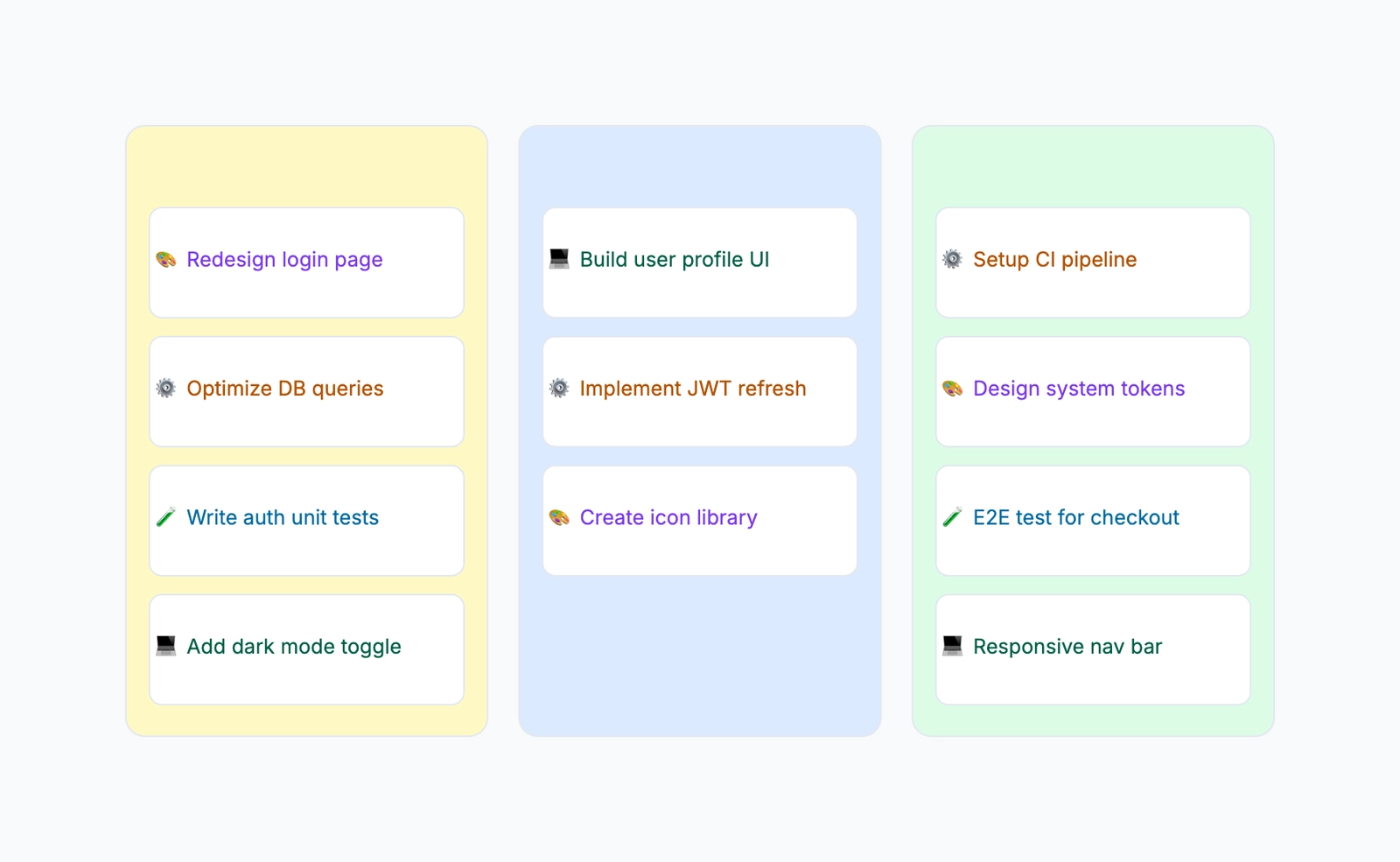
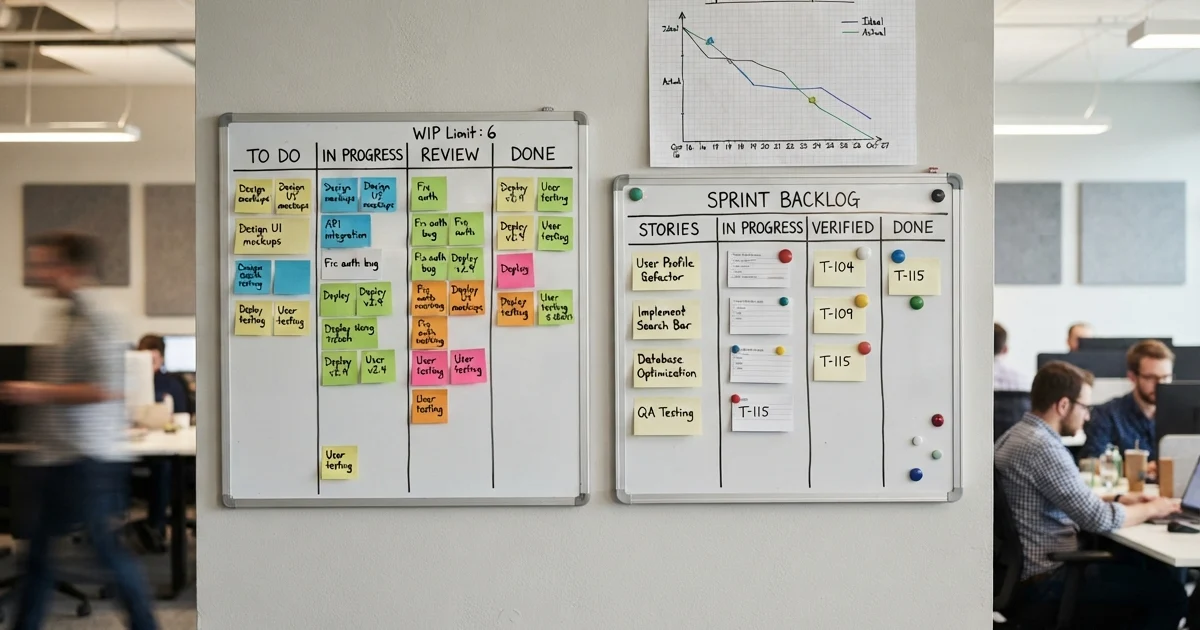
A kanban board turns invisible work into a visual flow you can actually manage — cards move left to right across columns, and at a glance you see what is queued, what is in progress, and what is done. The hard part is not the columns; it is setting it up so work actually flows instead of piling up.
This guide is a hands-on tutorial for building a board that works. If you want the background first — where kanban came from and how it differs from a to-do list — read What Is a Kanban Board? and then come back here to build one.
How to Make a Kanban Board, Step by Step
1. Define your columns. Columns are the stages your work passes through. The simplest board is three columns: To Do → In Progress → Done. That is enough to start. As you learn your real process, add stages like Backlog (ideas not yet committed) before To Do, or Review / QA before Done. Resist the urge to add too many — each column should represent a genuinely distinct stage of work.
2. Break work into cards. Each card is one unit of work — a task, a feature, a bug. The trick is sizing: a card should be small enough to finish in a day or two. "Redesign the website" is not a card; "Update the homepage hero copy" is. Small cards move visibly and give the team a steady sense of progress.
3. Add information to each card. A bare title is not enough. Add the owner (who is doing it), a priority (so people know what to pull next), and a due date if it is time-sensitive. Optional but useful: labels for type (bug, feature, chore) and a short description or checklist.
4. Set WIP limits. This is the step most people skip — and it is the heart of kanban. A WIP (work-in-progress) limit caps how many cards a column can hold at once, e.g. "In Progress: max 3." When the column is full, no one starts new work until something moves out. This forces the team to finish before they start, which is what keeps the board flowing instead of clogging.
5. Start the flow — pull from right to left. Kanban is a pull system, not a push system. Instead of assigning work top-down, team members pull the next card into their column only when they have capacity. Read the board right to left: first ask "can anything in Review move to Done?", then "can anything In Progress move to Review?", and only then pull a new card from To Do. Clearing the right side first is what prevents pileups.
6. Use the board for standups and to find bottlenecks. Run a quick daily standup at the board, walking right to left through the cards. When one column keeps hitting its WIP limit while others sit idle, you have found a bottleneck — that stage is your constraint, and it is where you should add help or rethink the process.
The two ideas that make this real kanban — and not just a list with columns — are WIP limits and pulling. Open the kanban board template to set up your columns and cards, then add the WIP limits as labels on each column.
Tips for an Effective Kanban Board
- Make WIP limits visible. Write the limit right in the column header ("In Progress (3)") so the constraint is impossible to ignore.
- Use a Done column you actually clear. Move finished cards to Done, then archive them regularly. A Done column that grows forever stops being useful.
- Add a "blocked" signal. A label or a flag on a stuck card surfaces blockers fast — blocked work is the most common hidden bottleneck.
- Keep cards small and similar in size. Consistent, small cards make flow predictable and standups fast.
- Review the board regularly. Adjust columns and WIP limits as you learn how work really moves; the first setup is rarely the right one.
Worked example: a small content-review board
Consider a hypothetical team preparing help articles. Its work passes through Ready, Drafting, Review and Published. “Published” means the approved article is available at the intended URL and its links have been checked; it does not mean an editor merely finished typing.
Each card represents one article with a clear reader question. Add the owner, source-document link, acceptance criteria and any genuine date constraint. A large documentation project can be an initiative that contains several cards rather than one card occupying Drafting for months.
Choose trial WIP limits from actual capacity. Suppose the team initially allows two cards in Drafting and one in Review. Those numbers are illustrative starting points, not recommended limits for all teams. Record why you chose them and when you will review them.
The reviewer is unavailable today, so one card remains in Review and cannot meet the exit policy. Mark the blocker and owner without moving the card backward just to make the column look empty. A blocked card still represents started work and should remain visible in your WIP accounting.
Instead of drafting a third article automatically, the team asks what would help finish the existing work. It may resolve a missing source, arrange authorized review coverage or renegotiate a deadline. A full column is a signal to discuss flow, not permission to bypass necessary approval.
Write entry and exit policies beside the columns
Ready might require a defined question, enough source material and an agreed priority. Drafting might require an accepted owner. Review might require a complete draft, working links and the checks relevant to that article. Published needs an observable result.
These policies keep a card from moving just because someone wants the board to appear active. They also make handoffs explicit: a reviewer should not need to reconstruct the writer’s intended scope from a vague title.
Decide how urgent work enters. If a live help page contains a factual error, the team may need an explicit expedited route. Agree who authorizes it and what happens to existing work. Calling every request urgent defeats both the normal queue and the WIP policy.
Read flow measures consistently
Define the start and finish events before measuring cycle time. In this example, the clock may start when a card enters Drafting and end when it is Published. Backlog waiting is a different interval unless your definition deliberately includes it.
Count throughput as completed work items over a stated period. Do not compare two periods without checking whether card sizes, work types and completion rules stayed comparable. A high count of tiny corrections is not automatically evidence that the team can finish more long tutorials.
Keep age visible for current work. An old card may be waiting for a missing decision rather than requiring more effort. Ask what prevents the next valid movement, and name the person who can resolve it.
Maintain the board without inventing automation
A CodePic board is an editable visual representation. Moving cards, changing labels and maintaining the WIP count are manual unless you separately build a supported integration. The canvas does not enforce a column limit or calculate flow metrics for you.
For a small planning meeting, that manual board may be sufficient. If you need notifications, audit trails, automated counts or a large shared task database, use a work-management system and let the diagram explain its workflow rather than become a second inconsistent source of truth.
Review the board after a representative period or a material workflow change. Change one policy at a time when possible, record the reason and inspect the effect. A cleaner-looking board is useful only if it still reflects the work people are actually doing.
Common Mistakes
No WIP limits. Without a cap, "In Progress" becomes a dumping ground and nothing finishes. A board without WIP limits is just a prettier to-do list.
Too many columns. Twelve micro-stages make the board unreadable and slow standups to a crawl. Start with three columns and add stages only when a real handoff demands one.
Cards that are too big. A card that takes two weeks sits motionless and hides its progress. Break large work into small cards that visibly move.
Adding without subtracting. Pushing new cards into To Do while never clearing the right side creates a backlog that grows forever. Always finish (clear the right) before you start (pull on the left).
Frequently Asked Questions
How do you make a kanban board?
Define your columns (the simplest is To Do, In Progress, Done), break your work into individual cards, add details like owner and due date, set a WIP limit on your in-progress columns, and pull cards from right to left as capacity frees up.
What is a WIP limit on a kanban board?
A WIP (work-in-progress) limit caps how many cards can sit in a column at once. It is the core of kanban — it forces the team to finish work before starting new work, which exposes bottlenecks and keeps cards flowing.
Ready to build yours? Open the kanban board template and start with three columns — add your cards, set WIP limits, and start pulling work, no signup required.
Related Reading
- What Is a Kanban Board? — the concept and where it came from
- Kanban vs Gantt — which one fits your project
- Free Kanban Board Tool — build one online for free