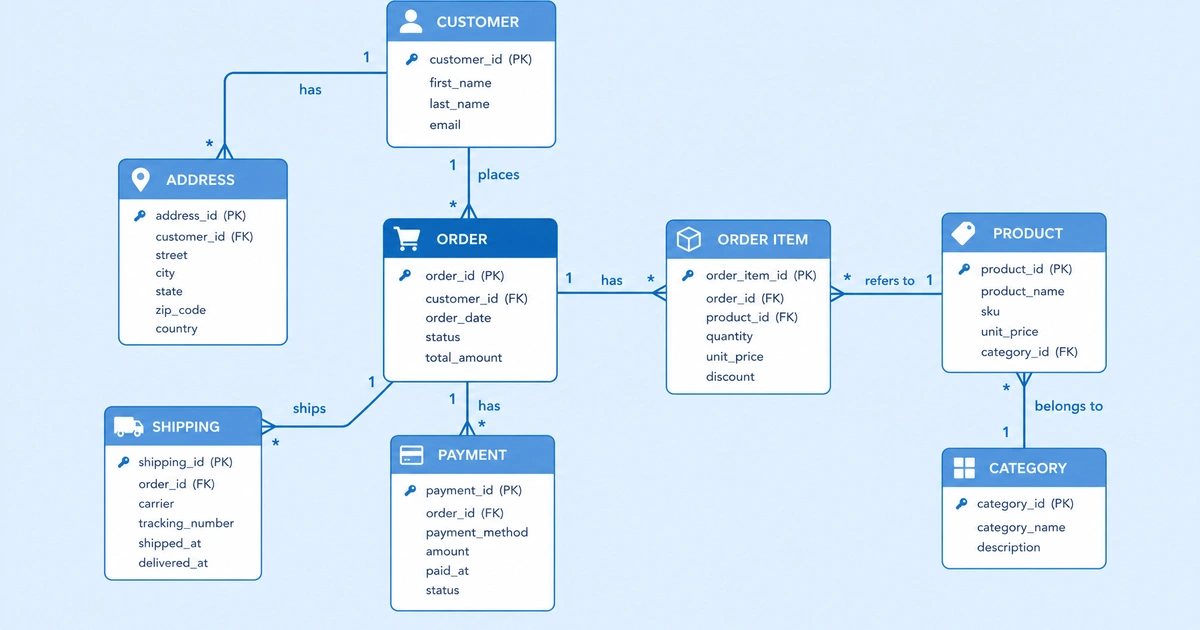
AI coding agents are good at explaining architecture in text, but text is not always enough. When you are reviewing a system with teammates, onboarding a new engineer, or writing technical documentation, you often need a diagram that people can scan in a few seconds.
The usual AI workflow is awkward: ask for Mermaid, paste it somewhere, fix the layout, then recreate the useful parts in a real diagram editor. With MCP, Cursor can call CodePic directly and create an editable diagram instead.
This guide walks through a practical workflow: connect Cursor to CodePic MCP, ask for a system architecture diagram, then refine the result visually.
What You Need
Before starting, you need:
- A CodePic account
- A CodePic API key
- Cursor with MCP support enabled
- The CodePic MCP endpoint:
https://codepic.cc/api/mcp/mcp
If you need the full configuration reference, start with the CodePic MCP setup page.
Step 1: Add CodePic MCP to Cursor
Create .cursor/mcp.json in your project root:
{
  "mcpServers": {
    "codepic": {
      "url": "https://codepic.cc/api/mcp/mcp",
      "headers": {
        "Authorization": "Bearer cpk_your_api_key_here"
      }
    }
  }
}
Replace cpk_your_api_key_here with your real API key.
Restart Cursor or reload the MCP server list after saving the file. Cursor should now be able to call CodePic tools from the chat.
Step 2: Ask for a Concrete Architecture Diagram
The quality of the diagram depends heavily on the prompt. Avoid asking for a vague "system diagram". Give Cursor the stack, the main components, and the important relationships.
Try this:
Draw a system architecture diagram for a Next.js SaaS app with:

- Frontend: Next.js app deployed on Vercel
- Auth: Supabase Auth
- Database: Postgres
- File storage: Cloudflare R2
- Billing: Stripe Checkout and Stripe webhooks
- Background jobs: queue worker for async email and billing sync

Show request flow from browser to app, database reads/writes, file upload flow,
and Stripe webhook callbacks.
This prompt gives the AI enough structure to produce a useful first draft. It names the diagram type, lists components, and explains which arrows matter.
Step 3: Review the Generated Diagram
After Cursor calls CodePic MCP, you should get a link to an editable diagram. Open it and check:
- Are all major components present?
- Are arrows pointing in the right direction?
- Are external services visually separated from your application?
- Are async flows, such as webhooks or background jobs, clear?
- Is the diagram readable without explaining it out loud?
Do not expect the first version to be final. The value of CodePic MCP is that the result stays editable, so you can keep iterating.
Step 4: Refine with Follow-up Prompts
Once the diagram exists, use focused follow-ups instead of asking Cursor to redraw everything.
Good follow-up prompts:
Move Stripe and Cloudflare R2 into an External Services section.
Add a webhook arrow from Stripe to the Next.js API route, then to Postgres.
Rename "queue worker" to "Background Worker" and place it below the app server.
Add a note explaining that file metadata is stored in Postgres while binary files are stored in R2.
These prompts are specific, which makes them safer than broad instructions like "make it better".
Step 5: Export or Share
When the diagram is ready, export it as PNG for docs, READMEs, PR descriptions, or design notes. If you need to preserve editability, export JSON and import it back into CodePic later.
CodePic does not currently export SVG. If your workflow requires vector output, keep that limitation in mind.
Example Prompts to Try
SaaS Billing Architecture
Create a system architecture diagram for SaaS billing with users, teams,
Stripe subscriptions, invoices, webhooks, and a background sync worker.
Database ER Diagram
Create an ER diagram for a SaaS billing system with users, teams,
subscriptions, invoices, payments, and products.
Use the ER diagram maker if you want to start from an embedded editor instead of Cursor.
CI/CD Pipeline
Create a CI/CD pipeline diagram for GitHub Actions deploying a Next.js app
to Vercel with type-check, lint, build, preview deployment, and production deployment.
For workflow-heavy diagrams, the flowchart maker is a good fallback.
When This Workflow Works Best
CodePic MCP is strongest when the diagram is:
- Technical enough that writing it by hand is annoying
- Structured enough that components and relationships can be described clearly
- Still early enough that a hand-drawn, editable draft is more useful than a polished artifact
That makes it a good fit for architecture reviews, ER diagrams, onboarding docs, technical proposals, and PR explanations.
If you want more prompt examples, see the CodePic MCP examples repo.