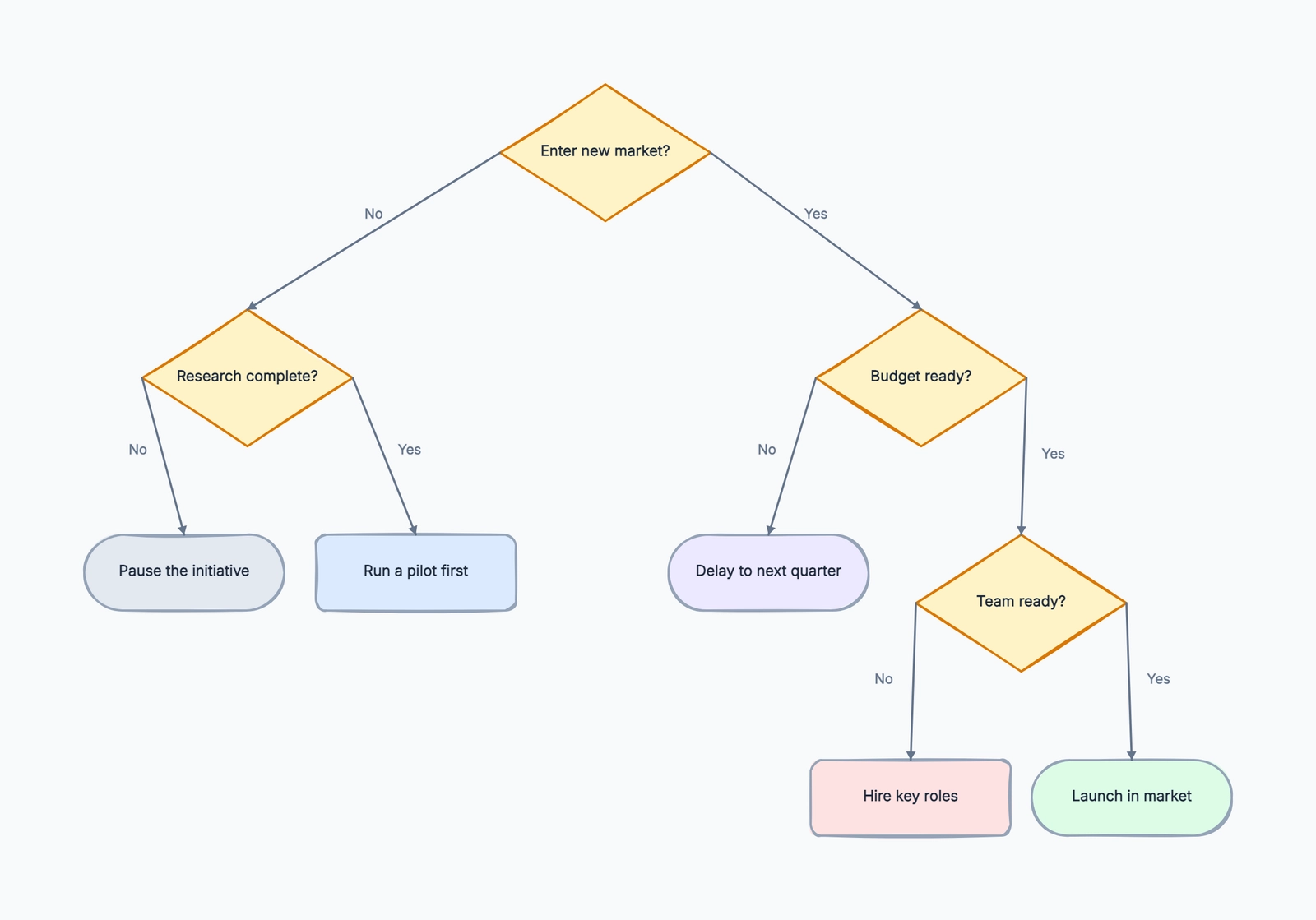
Decision trees show up everywhere once you start looking. Product managers map feature prioritization paths. Support teams build troubleshooting guides. Developers document conditional logic before writing code. Strategists lay out scenarios with branching outcomes. The common thread: you need a clear way to visualize "if this, then that" — and the diagram needs to be understandable by people who aren't staring at the same codebase or spreadsheet you are. (If you're new to decision trees, start with what a decision tree is and how it works.)
Most dedicated decision tree software targets data science workflows (think: probability-weighted nodes, Gini impurity, training datasets). But if what you need is a visual decision tree — the kind you'd put in a wiki, a slide deck, or a design doc — a diagramming tool with good branching support does the job better and costs nothing.
What to Look for in a Decision Tree Tool
Not every diagramming tool handles decision trees equally well. Here are the dimensions that actually matter:
Branch logic visualization. A decision tree lives or dies by how clearly it shows Yes/No paths (or multi-way splits). Can you label branches? Are the connections visually distinct from regular flowchart arrows? Can you tell at a glance which path leads where?
Node customization. Decision nodes, outcome nodes, and chance nodes serve different roles. Being able to differentiate them — by shape, color, or icon — makes the tree scannable instead of a wall of identical boxes.
Layout automation. Manual node placement gets tedious fast once a tree has more than a dozen nodes. Auto-layout (or at least snap-to-grid and alignment guides) saves real time. Bonus if the tool can reflow the tree when you add or remove branches.
Collaboration. Can your team comment on specific nodes? Can multiple people edit simultaneously? Or do you need to export and share a static image?
Export formats. PNG and PDF cover most presentation needs. SVG matters if the tree will be embedded in a web page or technical document. Some tools also export to editable formats that other tools can import.
Lucidchart
Free tier: 3 active documents, ~60 objects per document
Collaboration: Real-time co-editing on free plan
Branch visualization: Labeled connectors, conditional formatting
Layout: Auto-layout available, tree and hierarchical modes
Lucidchart has dedicated decision tree templates and shapes — diamond decision nodes, rectangular outcome nodes, labeled Yes/No connectors — all available on the free plan. The auto-layout feature is particularly useful for decision trees: you can rearrange an entire tree with one click when you add new branches, instead of manually nudging every node downstream.
The free tier caps you at three documents with about 60 objects each. A moderately complex decision tree (say, 20 decisions with outcomes) can approach that limit. For one-off trees or evaluation, three documents is workable. For a team building decision trees regularly, you'll bump into the cap within a week or two.
Real-time collaboration works well — multiple editors, commenting on specific nodes, version history. These features work on the free plan, which is unusual.
Best for: Teams that need polished, professional decision trees with real-time collaboration and don't mind the three-document limit.
draw.io (diagrams.net)
Free tier: Completely free, no paid tier exists
Collaboration: File sharing (Google Drive, OneDrive, GitHub)
Branch visualization: Manual connector labeling, custom styles
Layout: Tree layout engine, vertical/horizontal/radial options
draw.io is fully free with no usage limits — period. It includes a tree layout engine that handles decision trees well: set the layout direction (top-down or left-to-right), and the tool arranges nodes and connectors automatically. When you add or remove a branch, one click reflows the entire structure.
There are no purpose-built "decision tree" shapes, but the standard rectangle + diamond + connector setup works fine. You can color-code decision nodes vs. outcome nodes, add labels to branches, and style connectors differently for Yes/No paths. It takes a few extra minutes of setup compared to a template-first tool like Lucidchart, but the result is equally readable.
The gap is collaboration. draw.io has no native real-time co-editing. You share files via Google Drive or version-control them in GitHub, but two people can't edit the same tree simultaneously. For async teams this barely matters; for teams that like to build diagrams together in a meeting, it's a real constraint.
Best for: Anyone who wants a fully-featured decision tree tool with zero cost and zero usage limits, especially teams comfortable with file-based collaboration.
Miro
Free tier: 3 boards, unlimited collaborators
Collaboration: Full real-time, cursor presence, comments, voting
Branch visualization: Sticky notes + connectors, or shape-based
Layout: Manual placement, alignment guides, no auto-layout for trees
Miro is a whiteboard, not a diagramming tool — and that distinction matters for decision trees. You can absolutely build a decision tree on a Miro board using shapes and connectors, but there's no tree-specific auto-layout. You place and align every node manually.
Where Miro shines is the collaborative experience. During a meeting, a team of six can simultaneously add nodes, comment on branches, and use dot-voting to decide which paths to prioritize. The whiteboard metaphor works particularly well for decision trees that are still being designed — when the branching logic itself is the thing being debated.
The shape library covers basic needs (rectangles, diamonds, circles), but there are no dedicated decision tree shapes or smart connectors that auto-label Yes/No. For trees with more than ~15 nodes, the manual layout becomes time-consuming.
Best for: Teams that want to collaboratively brainstorm and build decision trees in real time, where the process of building matters as much as the final diagram.
Canva
Free tier: Unlimited designs with Canva free plan
Collaboration: Real-time
Branch visualization: Template-based, drag-to-customize
Layout: Template-driven, limited freeform editing
Canva offers several decision tree templates that look great out of the box — clean typography, modern color palettes, well-balanced spacing. You swap out the text, adjust colors, and you have a presentation-ready tree in minutes.
The limitation is structural. Canva's templates are essentially fixed layouts that you fill in. Adding a new branch or restructuring the hierarchy means manually moving and resizing multiple elements. There's no snap-to-connector behavior or auto-reflow. For a decision tree with a stable structure (you know the branches up front), this works fine. For a tree that's still evolving, it gets frustrating.
Canva excels at the last mile: when the logic is settled and you need the diagram to look polished for a slide deck, a client deliverable, or an internal document. It's a design tool first, and it shows.
Best for: Non-technical users who need a visually polished decision tree for presentations or reports, and whose tree structure is relatively fixed.
Figma / FigJam
Free tier: Figma — 3 files; FigJam — unlimited (with free plan)
Collaboration: Full real-time, cursor presence, comments
Branch visualization: Shape + connector based, fully customizable styling
Layout: Manual placement, auto-layout (Figma), connectors (FigJam)
Figma and FigJam take different approaches. In Figma proper, you can build a decision tree using auto-layout frames and components — the result is pixel-perfect and fully customizable, but the setup time is real. It's more like building a design system for decision trees than drawing one.
FigJam is the better fit for most people. It has shapes, connectors, sticky notes, and stamps — the building blocks for a quick decision tree. The real-time collaboration is top-tier (it's Figma, after all), and the infinite canvas means you never run out of space for deep trees. However, like Miro, there's no tree-specific auto-layout — you position nodes manually.
If your team already lives in Figma for design work, using FigJam for decision trees avoids adding another tool. The cross-over between FigJam boards and Figma files is seamless.
Best for: Design teams already in the Figma ecosystem who want to keep decision trees alongside their design work without switching tools.
CodePic
Free tier: Unlimited
Collaboration: Read-only link sharing
Branch visualization: Decision tree template with labeled Yes/No paths
Layout: Template-based auto-layout, manual adjustment available
CodePic is a diagramming tool with a hand-drawn visual style — everything looks like it was sketched on a whiteboard. It has a decision tree template that generates a structured tree with decision nodes, outcome nodes, and labeled Yes/No branches. You can also describe a decision tree to an AI assistant (via MCP with Claude or Cursor) and have it generated automatically.
To be clear about positioning: CodePic is a drawing tool, not a data analysis platform. It won't calculate probabilities, run Monte Carlo simulations, or train a classifier. What it does well is produce a clean, readable decision tree diagram that communicates branching logic visually — the kind you'd put in a design doc, a wiki page, or a presentation.
The hand-drawn aesthetic works well for decision trees that are meant to communicate rather than to compute. A sketched-looking tree signals "this is a thinking tool" rather than "this is a final specification," which is often exactly the right tone for decision-making discussions.
Collaboration is currently limited to read-only link sharing — no real-time co-editing.
Best for: Anyone who wants a quick, visually distinctive decision tree for communication and documentation, especially teams already using AI tools in their workflow.
Open the decision tree template to start from a ready-made structure.
MindMeister
Free tier: 3 mind maps
Collaboration: Real-time co-editing
Branch visualization: Hierarchical tree structure, customizable node styles
Layout: Auto-layout with multiple tree orientations
MindMeister is a mind mapping tool, but mind maps and decision trees share the same underlying structure: a root node branching out into children. MindMeister lets you build top-down hierarchical trees with customizable node shapes, colors, and icons — which maps directly to decision tree conventions.
The auto-layout handles rebalancing well. Add a new branch and the entire tree adjusts. Node styling lets you visually distinguish decisions from outcomes — use diamonds for decisions, rounded rectangles for outcomes, color-code risk levels, and so on.
The free tier gives you three maps with unlimited nodes per map. Three maps is tight for ongoing use, but a single complex decision tree fits in one map. Real-time collaboration works on the free tier, which makes it viable for team workshops.
The main limitation is that MindMeister is optimized for radial mind maps, not strict top-down trees. You can force a top-down layout, but some of the tool's features (like the radial view toggle) assume a mind-map mental model rather than a decision tree one.
Best for: Teams that want auto-layout and real-time collaboration for hierarchical decision trees, and don't mind using a mind mapping tool for the purpose.
Quick Comparison
| Tool | Free Plan | Real-time Collab | Auto-Layout | Node Customization | Best For |
|---|---|---|---|---|---|
| Lucidchart | 3 docs, ~60 objects | ✓ | ✓ Tree mode | High | Polished professional trees |
| draw.io | Unlimited | File sharing | ✓ Tree engine | High | Zero-cost, full-featured |
| Miro | 3 boards | ✓ | ✗ Manual | Medium | Collaborative brainstorming |
| Canva | Unlimited | ✓ | ✗ Template-based | Template-bound | Visual presentations |
| Figma/FigJam | 3 files / Unlimited | ✓ | Partial | High (manual) | Design teams |
| CodePic | Unlimited | Read-only link | ✓ Template | Medium | AI-generated, hand-drawn style |
| MindMeister | 3 maps | ✓ | ✓ | Medium | Mind-map-style trees |
How to Choose
Need a fully free tool with no caps? draw.io is the safest choice. No document limits, no object limits, and the tree layout engine handles decision trees well.
Real-time collaboration is non-negotiable? Lucidchart (if three documents is enough) or Miro (if you want the whiteboard brainstorming experience). MindMeister also offers real-time collab with decent auto-layout.
Making something for a presentation? Canva produces the most visually polished output with the least effort, as long as your tree structure is finalized.
Already in Figma? Use FigJam. One less tool in your stack.
Want AI to do the drawing? CodePic lets you describe the tree and generates it, which is genuinely faster for straightforward decision trees.
Coming from mind mapping? MindMeister bridges the gap between mind maps and decision trees without forcing you into a different tool paradigm.
The practical test: take one real decision you're facing — hiring criteria, feature prioritization, troubleshooting steps — and draw the tree in two of these tools. Whichever one gets you to a readable result faster is the right pick.
Related Reading
- What Is a Decision Tree? Definition, Examples, and How It Works — understand the structure, types, and common mistakes before you start drawing.
- What Is a Flowchart? — decision trees focus on branching logic; flowcharts add sequence and actions. Learn the difference.
- Decision Tree Template — start with a ready-made structure and customize it for your use case.