Choose draw.io for the deepest free technical shape libraries, Lucidchart or Miro for managed collaboration, Excalidraw for fast hand-drawn flows, CodePic for browser templates and editable AI-assisted diagrams, or Google Drawings and Canva for simple work inside their existing ecosystems.
The seven tools differ in diagram limits, specialized symbols, real-time editing, offline use, signup requirements, and export formats. If the notation is new to you, review flowchart basics and symbols; otherwise, use those six constraints to choose the free plan that will still work later.
What to Look for in a Free Flowchart Maker
Before diving into specific tools, it helps to know which dimensions actually matter:
Shape library depth. Standard flowcharts need ovals, rectangles, diamonds, parallelograms, and arrows. More complex diagrams (BPMN, UML, network) need specialized shapes. Know what you need before evaluating.
Collaboration model. Real-time co-editing (multiple people editing simultaneously) vs. file sharing (one person at a time, pass the file) are meaningfully different experiences. Neither is wrong — it depends on how your team works.
Free plan limits. Caps on the number of diagrams are the most common restriction. Three diagrams is enough to evaluate a tool, not enough for sustained use. Unlimited diagrams with limited features is often a better deal.
Export options. Can you get your diagram out as a PNG, PDF, or SVG? Can you import into other tools?
Learning curve. Some tools are intuitive in five minutes, others take longer. For occasional flowcharters, a tool that's quick to pick up and put down matters more than one with a deep feature set.
draw.io (diagrams.net)
Free tier: Completely free, no paid plan exists
Collaboration: Via file sharing (Google Drive, OneDrive, Confluence, GitHub)
Shape library: Extensive — flowchart, UML, network, BPMN, ERD, and more
draw.io is the most fully-featured free flowchart maker available. There is no paid plan — everything is free, forever, with no usage caps. The shape library includes standard flowchart symbols, UML diagrams, network topology, BPMN, entity-relationship diagrams, AWS/Azure/GCP icons, and more.
Files are stored locally or in your own cloud storage, with no draw.io server holding your data. This appeals to teams with privacy requirements or who want to use version control for diagrams (draw.io files can be stored in GitHub).
The limitation is collaboration. draw.io doesn't have native real-time co-editing. Multiple people can work on the same diagram by sharing files through Google Drive or similar, but it's the same model as sharing a Word document — not simultaneous editing. For teams that work mostly asynchronously, this is rarely a problem. For teams that need to edit diagrams together in real time, it's a genuine gap.
draw.io also integrates with Confluence as a plugin, making it the de facto standard for diagram-within-wiki workflows.
Best for: Anyone who needs a fully-featured, professional flowchart tool at zero cost, especially individuals, small teams, and organizations already using Confluence.
Lucidchart
Free tier: 3 active documents, object cap per diagram (~60 objects)
Collaboration: Real-time on free plan, unlimited viewers
Shape library: Comprehensive, including standard and technical shapes
Lucidchart offers real-time collaboration — multiple people can edit the same diagram simultaneously — which draw.io doesn't provide natively. The interface is polished and the shape library is comprehensive. Data-linked diagrams (importing from CSV or spreadsheet to auto-generate visuals) work on paid plans, not free.
The free tier is limited to 3 active documents with roughly 60 objects per diagram. This is enough to thoroughly evaluate Lucidchart and complete a small project. Teams that want to use it as a primary diagramming tool will hit the limit quickly and be pushed toward the paid plan, which starts around $9 per user per month.
The free tier is better understood as a permanent evaluation tier than a sustained free option for teams doing regular diagramming.
Best for: Teams that need real-time collaboration on diagrams and can work within the three-document limit. Also good for evaluation before committing to a paid plan.
Miro
Free tier: 3 boards, unlimited collaborators
Collaboration: Full real-time, cursor presence, comments
Shape library: Medium — good for standard flowcharts, thin for technical diagrams
Miro is a whiteboard platform first and a flowchart tool second, but it handles standard flowcharts well. The free plan is notably generous on collaboration: unlimited team members can work on three boards simultaneously with full real-time features enabled.
The drag-and-drop experience is smooth and the flowchart shapes are clean and well-organized. Where Miro falls short for technical flowchart work is shape library depth — there's no BPMN, no formal UML set, no specialized technical shapes. For business process flowcharts and team-facing diagrams, it's more than adequate. For technical documentation, draw.io or Lucidchart serve better.
The board limit is the main constraint. Three boards is enough for exploration, but a team doing regular diagramming will want more.
Best for: Teams already using Miro for collaboration who want to create flowcharts without adding another tool to their workflow.
Excalidraw
Free tier: Unlimited
Collaboration: Real-time via shared link (free); team rooms via Excalidraw+
Shape library: Minimal — basic shapes only
Excalidraw is fully free for individual use, open source, and requires no account. You open the tool and start drawing immediately. The defining characteristic is its hand-drawn aesthetic: everything looks like it was sketched on a whiteboard rather than produced by diagramming software.
This aesthetic is deliberately useful. Flowcharts that look polished tend to be treated as finished. Flowcharts that look sketched invite feedback and revision. For early-stage process design, architecture discussions, or any situation where you want the diagram to feel like a draft, Excalidraw's style is an advantage.
The shape library is intentionally limited to basic shapes — no specialized flowchart symbols, no BPMN, no UML. For formal process documentation, this is a constraint. For informal diagrams and exploratory work, it's not a problem.
Collaboration works through shared links in the free version. Anyone with the link can view and edit. More persistent team collaboration rooms require Excalidraw+.
Best for: Technical teams and developers who want a fast, informal diagramming tool with a whiteboard feel and no account required.
CodePic
Free tier: Unlimited
Collaboration: Read-only link sharing
Shape library: Medium — covers standard flowcharts and common technical diagram types
CodePic is free with no diagram limits. Like Excalidraw, it uses a hand-drawn style, but covers a wider range of diagram types: standard flowcharts, mind maps, org charts, sequence diagrams, ERDs, and system architecture diagrams.
What distinguishes CodePic is AI integration. It supports the MCP (Model Context Protocol), which means you can connect it to Claude or Cursor and describe a flowchart in plain language to have it generated automatically. Instead of dragging and dropping shapes, you describe the process in a few sentences and the diagram appears. For engineers already using AI coding tools in their daily workflow, this changes the economics of diagramming considerably.
Collaboration is currently read-only link sharing — you can share a diagram as a view-only link, but real-time co-editing is not yet available.
Best for: Technical teams using AI tools who want to generate flowcharts from natural language descriptions, or anyone who wants unlimited flowcharts with the hand-drawn whiteboard aesthetic.
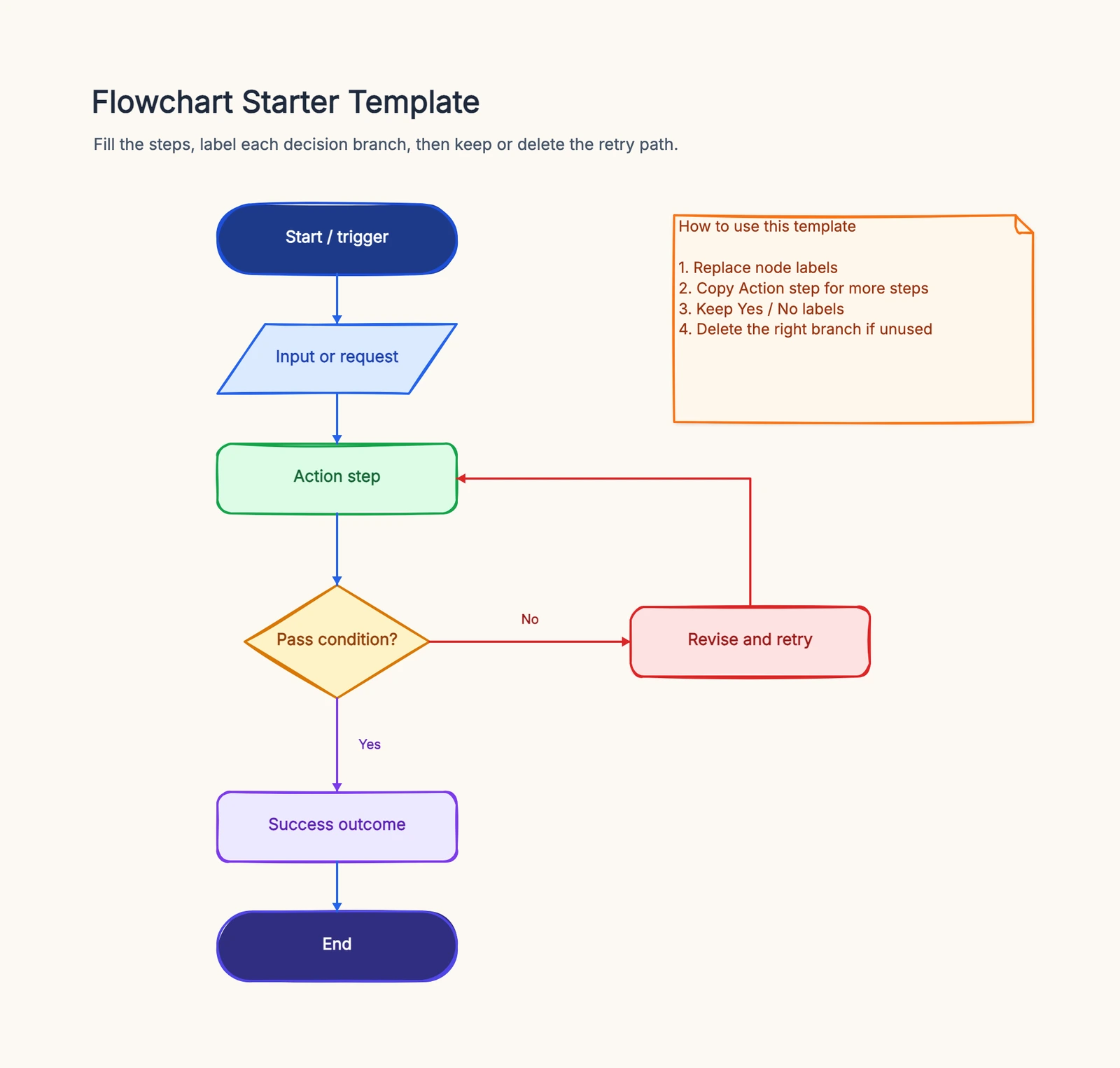
Open the flowchart template to start from a ready-made structure.
Google Drawings
Free tier: Unlimited (included with Google account)
Collaboration: Real-time via Google Drive
Shape library: Basic — standard shapes only
Google Drawings is included with any Google account and requires no additional signup. It integrates seamlessly with Google Docs and Slides — you can embed a drawing directly in a document and edit it in place.
The shape library is limited to basic shapes, and the interface is functional but dated. You can build a standard flowchart, but you won't have specialized shape sets or advanced diagramming features.
The best use case for Google Drawings is when you need a simple flowchart embedded directly in a Google document or presentation, and the overhead of opening a separate diagramming tool isn't worth it.
Best for: Occasional users who need a simple flowchart embedded in a Google Doc or Slides presentation.
Canva
Free tier: Unlimited (with Canva free plan)
Collaboration: Real-time
Shape library: Template-based, not symbol-standard
Canva has flowchart templates that are visually polished and easy to customize. The free plan includes access to many templates and unlimited designs. However, Canva approaches flowcharts as a design tool rather than a diagramming tool — the focus is on visual output, not on the standardized symbols and precise relationship modeling that professional flowcharting requires.
For flowcharts that need to look polished in a presentation, marketing material, or internal communication, Canva works well. For technical process documentation or any flowchart where standard symbols matter, it's not the right tool.
Best for: Non-technical users creating visually polished flowcharts for presentations or communication, where precise diagramming conventions are less important than appearance.
Quick Comparison
| Tool | Free Plan | Real-time Collab | Shape Depth | AI Features | Best For |
|---|---|---|---|---|---|
| draw.io | Unlimited | File sharing | Deep | No | Full-featured, zero cost |
| Lucidchart | 3 docs | ✓ | Deep | No | Real-time collab, free eval |
| Miro | 3 boards | ✓ | Medium | Limited | Teams already in Miro |
| Excalidraw | Unlimited | Shared link | Minimal | No | Fast informal sketching |
| CodePic | Unlimited | Read-only link | Medium | MCP/Claude/Cursor | AI-generated diagrams |
| Google Drawings | Unlimited | ✓ | Basic | No | Embedded in Google Docs |
| Canva | Unlimited | ✓ | Template-based | No | Polished visual output |
How to Choose
If you need the most complete free tool with no limits: draw.io is the answer. It covers every diagram type, stores files where you choose, and costs nothing.
If real-time collaboration is essential: Lucidchart's free tier covers this, with the three-document constraint. Miro works too, especially if your team is already there.
If you need something fast with no account: Excalidraw. Open the URL, start drawing. No friction.
If you use AI tools in your daily workflow: CodePic, for the ability to generate diagrams from plain-language descriptions.
If the diagram needs to live in a Google Doc: Google Drawings, despite its limitations.
If the output needs to look polished for a presentation: Canva, if standard flowchart conventions don't matter.
The fastest evaluation method: take a real process you need to document, open two of the tools that seem most relevant to your situation, and spend 10 minutes drawing the same diagram in each. The one that's faster and less frustrating is the right choice.
Related Reading
- How to Make a Flowchart — step-by-step tutorial
- Flowchart Symbols Guide — what each shape means
- Best Diagramming Tools in 2026 — broader comparison including non-flowchart tools
- Open the flowchart template — start drawing immediately