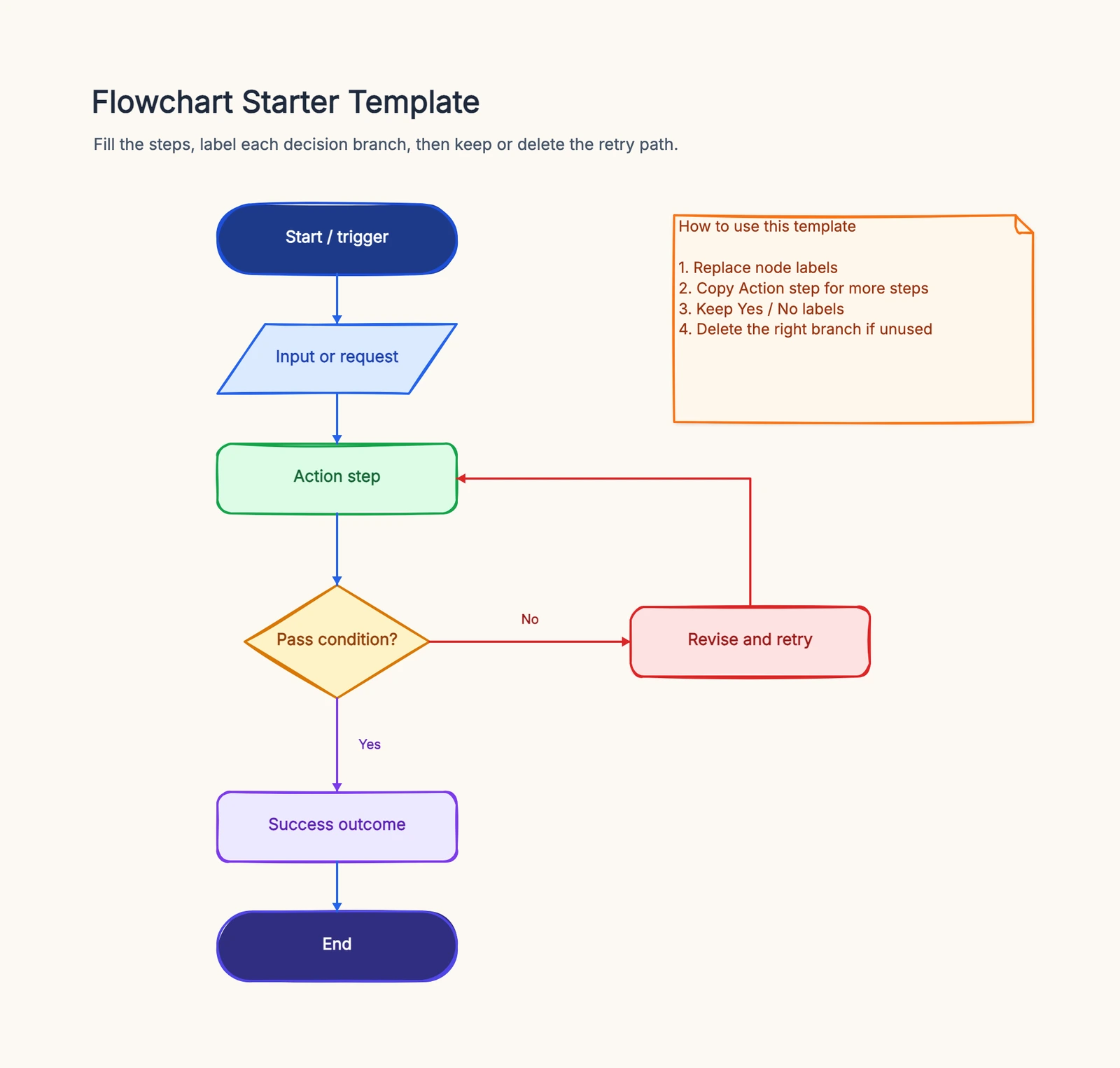
If you write docs, you know this loop: you draw a flowchart in some tool, export it to PNG, and upload it to your blog or doc site. A couple of days later you notice an arrow points the wrong way, so you go back, fix the diagram, re-export it, re-upload it, and replace the old image. If that same diagram lives in three places, you do the whole dance three times.
Screenshot-style diagrams have a fundamental problem: they're frozen. The image is disconnected from the source, every change has to be synced by hand, and after a while you can't even be sure whether the version live on your site is the latest one.
Embedding fixes exactly this. What you put on your site is no longer a static image — it's a live window into the original diagram. Change the source, and every place it's embedded updates with it. This post covers how CodePic's embed feature works and when it's a better fit than exporting an image.
How embedding differs from exporting an image
The most immediate difference is sync.
Exporting a PNG takes a snapshot of the diagram at one moment and pastes it somewhere; after that, the image and the source have nothing to do with each other. Embedding instead drops in an <iframe> that loads the live content of your CodePic document. Edit the diagram or rearrange the layout in the editor, and every page that embeds it shows the new version on the next refresh — you don't touch a single embed.
The second difference is sharpness. A PNG is a bitmap, so it gets fuzzy when readers zoom in on a high-resolution screen. An embedded diagram is rendered live on the canvas, so it stays crisp at any scale, and CodePic's signature hand-drawn lines never turn into a blurry mess.
The third difference is interactivity. An embedded diagram isn't completely static — readers can pan around the canvas with the hand tool to view different regions. For a large architecture diagram that won't fit on one screen, readers can drag to explore it, which beats a screenshot squeezed into an unreadable thumbnail.
Exporting still has its place, of course: email, chat, dropping a slide into a deck — for those "offline" cases, an image is simpler. Embedding shines on the web — blogs, doc sites, knowledge bases, internal wikis — places that are maintained over time and where content changes.
Embed a diagram in three steps
No coding required — it's copy and paste.
Step 1: Make the document public
This step matters. Skip it and your embed will show "Document not found."
Embedding means anyone who visits your site needs to be able to load the diagram, so the document has to be publicly readable. Open the share panel in the editor and set the document to public/shared. Once it's public, people without a CodePic account can see the diagram — which is exactly what embedding requires.
If you only want specific people to see the diagram and don't want it public, embedding isn't the right tool — exporting an image is the better fit.
Step 2: Copy the embed code
The share panel gives you a ready-made embed snippet that looks like this:
<iframe
  src="https://codepic.cc/en/embed/your-document-id"
  title="CodePic Diagram"
  width="800"
  height="500"
  style="max-width: 100%; border: none;"
  frameborder="0"
  scrolling="no"
  loading="lazy"
  allow="fullscreen"
  referrerpolicy="no-referrer-when-downgrade">
</iframe>
Click to copy the full snippet. Note a couple of details already set up for you: max-width: 100% keeps the diagram from overflowing on narrow screens (like phones), and loading="lazy" defers loading until the reader scrolls to it, so it doesn't slow down your page's initial load.
Step 3: Paste it into your site
Drop the snippet anywhere that accepts HTML:
- Self-hosted blog / doc site: paste it straight into HTML or MDX.
- Notion: use the
/embedcommand and paste the embed link. - WordPress: use a "Custom HTML" block.
- Confluence and similar wikis: find an "embed page" or "iframe" widget and paste the link.
Once it's in, the diagram appears and automatically scales to fill the frame.
What the embed looks like
Readers see a fully rendered diagram that's already been auto-scaled for you — no matter how large the original is, it fits the frame the moment it opens, so there's none of that "you can only see the top-left corner" awkwardness. The canvas background color matches the original too.
The diagram is read-only, so readers can't accidentally change your content, but they can pan the canvas to view different parts. There's a small jump button in the top-right corner that opens the diagram's full view page in a new tab — a nice side benefit for you: every embedded diagram is an entry point that funnels readers back to CodePic.
To resize the embed, just change the width and height on the <iframe> — pixels or percentages both work.
When embedding is the right call
Technical blogs. Writing about a system design or how a feature works, with an architecture diagram alongside it. Embedding instead of screenshotting means that after the post is live, if you spot a mistake in the diagram, you fix it in CodePic and the diagram in your blog updates automatically — no re-uploading.
Team docs and wikis. Flowcharts in internal docs go stale the fastest — the process changes but the diagram in the doc is still the old one. Embed the diagram, and whoever maintains it just edits it in CodePic; every doc that references it updates in sync, with no need to ping everyone to swap images.
Product and API docs. Embed request flows, state machines, and data-flow diagrams into your doc site. These change often across versions, and embedding saves a ton of repetitive "edit, export, replace" work.
Courses and tutorials. Step-by-step flowcharts and concept maps in tutorials — once embedded, students can zoom in on the web to read the details, a better experience than a fixed-resolution screenshot.
Wrapping up
Embedding isn't meant to replace exporting images — it solves the "the diagram changes" problem. As long as the diagram lives on a web page that's maintained over time and whose content updates, embedding beats a screenshot: edit the source once, and every place updates in sync.
Just remember the one prerequisite: make the document public first, or the embed won't render. After that, it's copy the iframe snippet and paste it into your site.