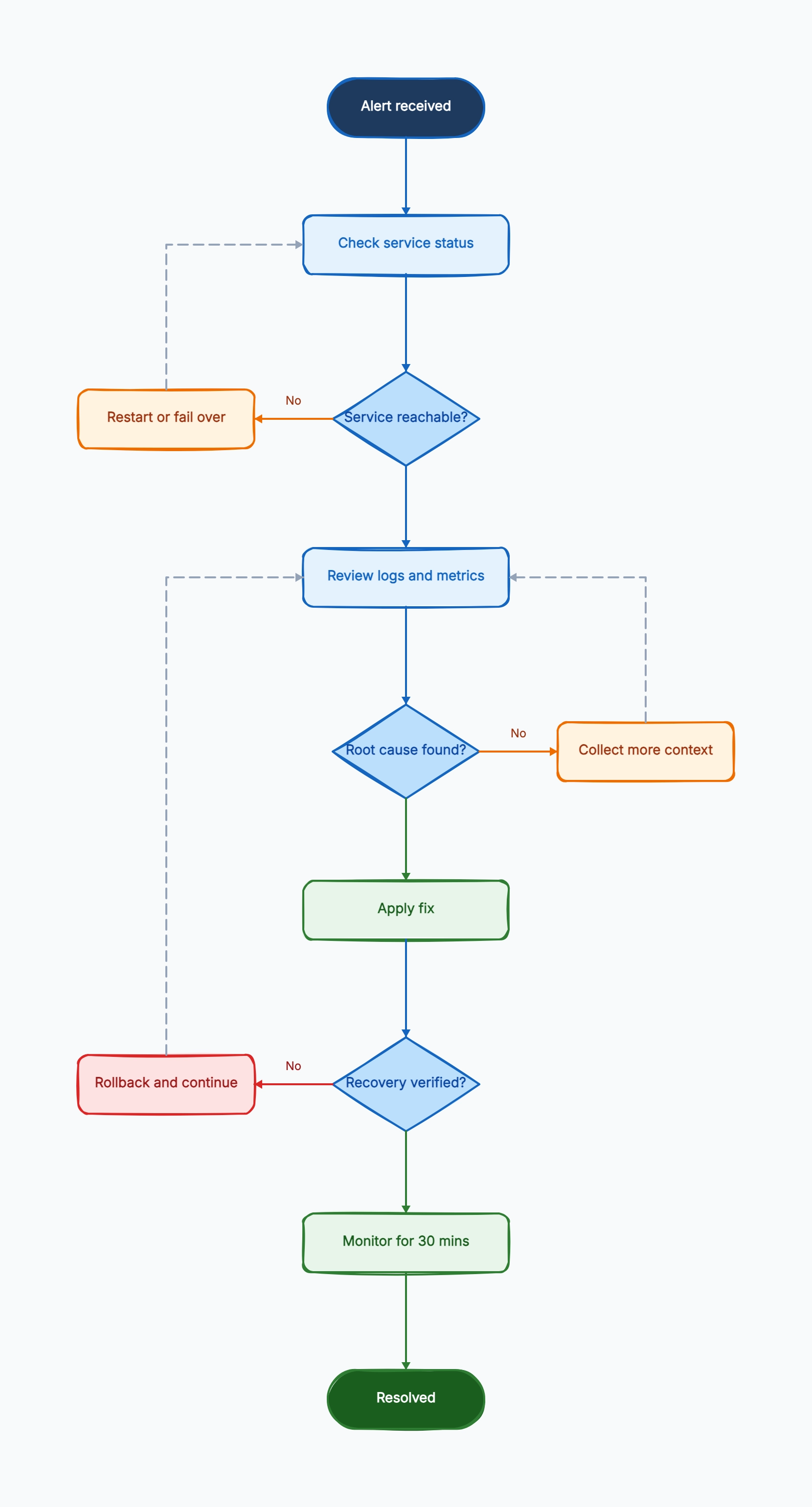
Production incident response
Who uses it: On-call engineering or SRE teams
Alert fired
→ Service reachable?
No → Restart / failover
Yes → Check logs and metrics
→ Root cause found?
No → Collect more evidence
Yes → Apply fix → Verify → Monitor → End
Why this works: This layout separates fast recovery from deeper investigation, which helps reduce incident duration without losing diagnostic rigor.
Customer support issue triage
Who uses it: Support teams handling recurring product issues
Ticket received
→ Can agent reproduce issue?
No → Request more details
Yes → Known issue?
Yes → Send workaround
No → Escalate with logs
Why this works: The key benefit is consistency: agents stop improvising and collect the same critical details before escalation.
Internal app debugging
Who uses it: Product or platform teams investigating regressions
Bug reported
→ Can reproduce in staging?
No → Compare environments
Yes → Check recent changes
→ Fix verified?
No → Roll back
Yes → Monitor and close
Why this works: This example keeps environment comparison and rollback visible, which are often forgotten when teams focus only on code fixes.